Getting Started with DeskDirector
DeskDirector Portals
Browser Support
What is the DeskDirector Admin Portal?
What is the DeskDirector Tech Portal
What is the DeskDirector Client Portal?
Desktop Portal
Managing Your Account
Admin Essentials
DeskDirector Features Overview
Logging in to DeskDirector
User Profiles & Profile Pictures
Managing Tickets with DeskDirector
Office Hours
How Searching Works
Embedding Help Page Media
Get started with the DeskDirector Power Automate Connector
Features
Portal Customization
Forms
Service Catalogue
Communication
Email Connectors
Notifications
Email Notifications
Actionable Messages for Emails
Real-Time Chats
Email Template Engine
Surveys
Broadcasts
Generative AI
Setting up AI Service Providers
Microsoft Foundry for DeskDirector
Knowledge Bases for AI Assistants
Custom Tools for AI Assistants
DeskDirector with Generative AI
AI Assistants in DeskDirector
Ticket Summary for TECH Portal
Advanced
Login & Authentication
Dashboard
Accounts
Contacts
Contact Groups
Approvals
Tags
Custom Domains
Task Lists
File Storage
The Learning Center
Portal Deep Linking
Auditing & Analytics
Microsoft Power Automate
Actions
Solutions
Featured Solution: Teams Ticket Discussion
Power Automate Template Gallery
Featured Solution: Ticket Briefing
Power Automate Administration
DeskDirector Power Platform Connector Reference
Power Automate Connector - Setting up your first flow
Microsoft Teams App
Introducing the DeskDirector for Microsoft Team App
Installing the Microsoft Teams App (Client Mode)
Installing the Microsoft Teams App (TECH Mode)
Setting up Tags for Teams Discussions (TECH Portal)
Branding the DeskDirector Teams App
DeskDirector Teams App Notifications
Contact Groups Integration with Microsoft Teams
Setting up Content Security Policy (CSP)
Advanced topic: Setting up Tech & Client Mode in the same tenancy
Integrating Microsoft Teams with DeskDirector Tech Portal
Smart Alerts for TECH Users
Integrations
Glossary
Security
Troubleshooting
Troubleshooting via Web Developer Tools
Desktop Portal - Common Issues
Contact & Service Agent Impersonation
Approvals - Common Issues
Microsoft Teams App - Common Issues
Email & Email Delivery - Common Issues
Login & Authentication - Common Issues
DeskDirector Desktop App - Installation Issues
Permissions & Access - Common Issues
Contact DeskDirector Support
Troubleshooting DeskDirector Connection Issues
Table of Contents
- All Categories
- Microsoft Power Automate
- Solutions
- Featured Solution: Teams Ticket Discussion
Featured Solution: Teams Ticket Discussion
 Updated
by Niamh Ferns
Updated
by Niamh Ferns
Teams Ticket Discussion
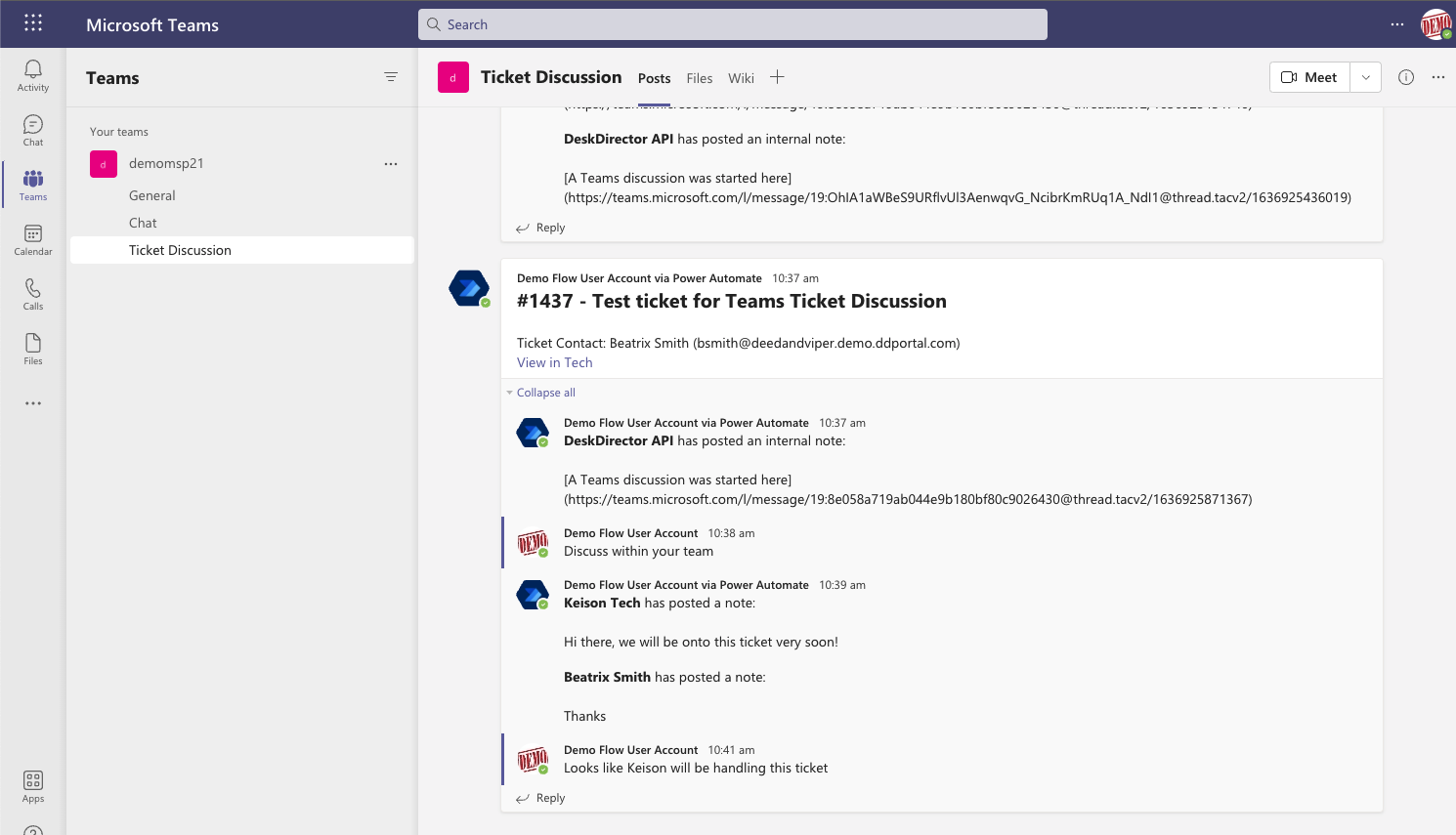
Easily create ticket discussion threads in Microsoft Teams with our Power Automate Solution template.
- Simply tag a ticket from the TECH Portal to create a thread
- Adds a Teams thread deep-link in the ticket so anyone can find and continue the discussion
- Adds a ticket deep-link in the Teams thread for context
- Ticket replies are automatically added to the Teams thread in real-time
Prerequisites
- Power Automate license with premium connector access
- Dataverse database set up in your environment
- Download the solution source zip (click to download)
Video Guide
Step-by-step guide in video form.
Step-by-Step Guide
- Create a Microsoft Teams channel, or have an existing one you can use
- Set up required connections in Power Automate, if you don't have these already
- DeskDirector
- Microsoft Teams. The account used for the connection needs to have access to the channel from the previous step
- Microsoft Dataverse
- Import the Solution into Power Automate
- Import the source zip
- Map your connections from the previous step
- Configure Solution
- Open the Config cloud flow
- Open the setup scope
- Config action
- domain (string): DeskDirector domain in the form of
subdomain.deskdirector.com. This is used to link the Tech portal ticket in the chat message - allowNewThreads (boolean): if true, it will allow creation of a new thread even if there is an existing one for the ticket. Recommend you leave it as false
- domain (string): DeskDirector domain in the form of
- Post a message in a chat or channel action
- Post as: bot or on behalf of a user
- Post in: input value must be Channel
- Team: from step 1
- Channel: from step 1
- Save
- Execute the flow via test run or live run. This will save your configurations
- If at any point you want to update any of the configurations, simply update and run the flow again
- Return to Solution overview (previous tab). Make sure the flows are enabled. It's OK for other components, like connection references, to display as
Off - Check that your configs have been saved
- Open the Config Dataverse table
- Select the Data tab, then view Custom columns in the dropdown
- A test message will be sent to your specified Teams channel every time the config flow executes
- Open the Config cloud flow
- Test the Solution
- Open a Tech portal ticket and add the 'teams' tag. This should trigger the Teams thread creation
- An internal note should appear with a link to the Teams thread
- Tech notes, tech time entries and contact notes will be added to the Teams thread as replies
- Replies posted on the thread via Teams will not be added to the ticket
Further Reading
Note and Teams message content can be edited to show or hide details. For example, if you wanted to show the company name in the initial thread message, go to the Ticket Tagged flow and add the company name parameter from the trigger output to the message body.
