Table of Contents
Featured Solution: Ticket Briefing
 Updated
by Niamh Ferns
Updated
by Niamh Ferns
Ticket Briefing
Add automated briefing and debriefing notes for specific customer tickets with our Power Automate Solution template.
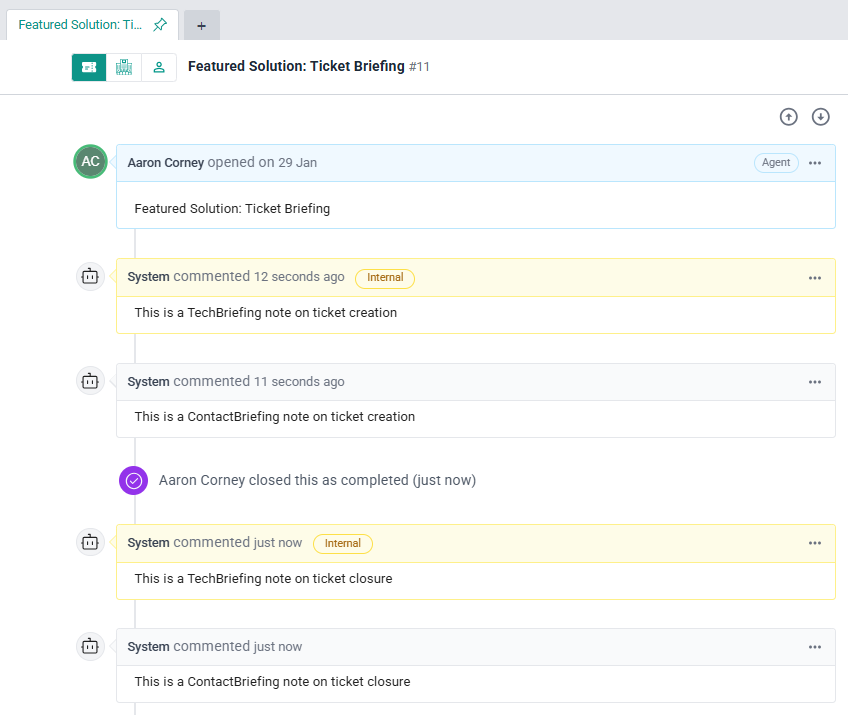
- Briefing notes are automatically added when the ticket is created
- Debriefing notes are automatically added when the ticket is closed
- TechBriefing notes are internal
- ClientBriefing notes are public
Example Configuration
CompanyId | CompanyName | TechBriefing | ContactBriefing | TechDebriefing | ContactDebriefing |
0 | Aaron PowerPlay Onboarding | This is a TechBriefing note on ticket creation | This is a ContactBriefing note on ticket creation | This is a TechBriefing note on ticket closure | This is a ContactBriefing note on ticket closure |
Prerequisites
- Power Automate license with premium connector access
- Dataverse database set up in your environment
- Download the solution source zip and Excel sheet template (click to download)
Video Guide
Step-by-step guide in video form. No audio.
Step-by-Step Guide
- Upload the Excel file into a document library in one of the supported locations as specified by the Excel (Business) connector: OneDrive for Business, SharePoint Sites, Office 365 Groups. We are using SharePoint in this demo.
- Populate the Excel file with content that will be posted as notes in the ticket. DeskDirector notes support markdown syntax. It does not support HTML. CompanyId can be found in the DeskDirector company profile page URL.
Example markdown content:

//TechBriefing
### Deed and Viper
* They have been with us for **5 years**
* Expect quick responses as they do time sensitive work

//ContactBriefing
Thank you for logging a ticket.
We aim to provide an update to your ticket within **1 hour**

//TechDebriefing
Remember to send survey. - Set up required connections in Power Automate, if you don't have these already.
- DeskDirector
- Microsoft Excel (Business). The account used for the connection needs to have access to the SharePoint file from the previous step.
- Microsoft Dataverse
- Import the Solution into Power Automate.
- Import the source zip
- Map your connections from the previous step.
- Configure Solution
- Open the Config cloud flow
- Open the 'Things to configure' scope
- 'List rows present in a table' action
- Location: Group/SharePoint/OneDrive location
- Document Library: container inside the location where you saved the file
- File: ticket-briefing-detai.xlsx
- Table: BriefingTable
- Save.
- Execute the flow via test run or live run. This will save your configurations. If at any point you want to update any of the configurations, simply update and run the flow again.
- Return to Solution overview (previous tab). Make sure the flows are enabled. Other components, like connection references, may say 'Off', but this is fine.
- Check that your configs have been saved.
- Open the Config Dataverse table.
- Select the Data tab, then view Custom columns in the dropdown.
- Open the Config cloud flow
- Test the Solution
- Create a ticket under a company that has an entry in the briefing table populated earlier.
- On ticket creation, briefing notes will appear if any are available
- On ticket close, debriefing notes will appear, if any
Further
- Add filters to the ticket created/closed triggers so that notification-type tickets don't trigger it.
- If you don't want a particular aspect, e.g, contact briefing/debriefing, you can delete the briefing table columns and flow logic.
