Getting Started with DeskDirector
DeskDirector Portals
Browser Support
What is the DeskDirector Admin Portal?
What is the DeskDirector Tech Portal
What is the DeskDirector Client Portal?
Desktop Portal
Managing Your Account
Admin Essentials
DeskDirector Features Overview
Logging in to DeskDirector
User Profiles & Profile Pictures
Managing Tickets with DeskDirector
Office Hours
How Searching Works
Embedding Help Page Media
Get started with the DeskDirector Power Automate Connector
Features
Portal Customization
Forms
Service Catalogue
Communication
Email Connectors
Notifications
Email Notifications
Actionable Messages for Emails
Real-Time Chats
Email Template Engine
Surveys
Broadcasts
Generative AI
Setting up AI Service Providers
Microsoft Foundry for DeskDirector
Knowledge Bases for AI Assistants
Custom Tools for AI Assistants
DeskDirector with Generative AI
AI Assistants in DeskDirector
Ticket Summary for TECH Portal
Advanced
Login & Authentication
Dashboard
Accounts
Contacts
Contact Groups
Approvals
Tags
Custom Domains
Task Lists
File Storage
The Learning Center
Portal Deep Linking
Auditing & Analytics
Microsoft Power Automate
Actions
Solutions
Featured Solution: Teams Ticket Discussion
Power Automate Template Gallery
Featured Solution: Ticket Briefing
Power Automate Administration
DeskDirector Power Platform Connector Reference
Power Automate Connector - Setting up your first flow
Microsoft Teams App
Introducing the DeskDirector for Microsoft Team App
Installing the Microsoft Teams App (Client Mode)
Installing the Microsoft Teams App (TECH Mode)
Setting up Tags for Teams Discussions (TECH Portal)
Branding the DeskDirector Teams App
DeskDirector Teams App Notifications
Contact Groups Integration with Microsoft Teams
Setting up Content Security Policy (CSP)
Advanced topic: Setting up Tech & Client Mode in the same tenancy
Integrating Microsoft Teams with DeskDirector Tech Portal
Smart Alerts for TECH Users
Integrations
Glossary
Security
Troubleshooting
Troubleshooting via Web Developer Tools
Desktop Portal - Common Issues
Contact & Service Agent Impersonation
Approvals - Common Issues
Microsoft Teams App - Common Issues
Email & Email Delivery - Common Issues
Login & Authentication - Common Issues
DeskDirector Desktop App - Installation Issues
Permissions & Access - Common Issues
Contact DeskDirector Support
Troubleshooting DeskDirector Connection Issues
Table of Contents
- All Categories
- Troubleshooting
- Microsoft Teams App - Common Issues
Microsoft Teams App - Common Issues
 Updated
by Niamh Ferns
Updated
by Niamh Ferns
Microsoft Teams App Troubleshooting
"I'm getting an error saying 'No Service Provider Found'."
When initialising the DD Teams app, you may encounter the following message: "No Service Provider Found". This error prompts you to contact your service provider to enable Microsoft Teams' integration feature for you. This issue usually arises when attempting to set up the Client Portal mode for your clients' teams, and their Azure Active Directory (AAD/Entra) tenancy hasn't been linked to one of the companies in DeskDirector in the TECH mode.
To resolve this issue, follow this documentation.
"I'm running into a loop when trying to install the Teams App"
You may be experiencing an installation loop issue with the DeskDirector Teams app. That is, despite trying to install, you are repeatedly prompted to install the portal app.
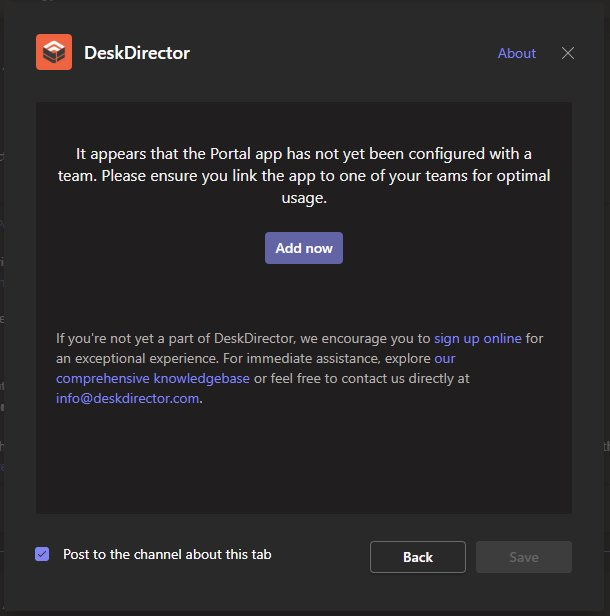
The issue may occur if the bot has not been installed before setting up the integration. The bot's installation is a prerequisite for successful integration setup:
- Uninstall and Reinstall the DeskDirector Teams app: Navigate to the team where the app is being installed. Go to Manage team under the ... menu to the right of the Team's name. Under the Apps tab, find the DeskDirector app and uninstall it.
- Install the DeskDirector Teams app to a team: Reinstall the app to a team's channel. Make sure to install both the tab and bot. The default install button should include both components. Do not install the tab without the bot.
- Check for Bot Installation: After reinstalling, the bot should be set up automatically in the background. Upon successful bot installation, you should receive a welcome message.
- Set Up the Integration: Once the bot is installed, proceed with the integration setup.
Please refer to the installation guide screenshot for a visual reference: Installation Guide.
If the issue persists after following these steps, please contact our support team for further assistance.
