Getting Started with DeskDirector
DeskDirector Portals
Browser Support
What is the DeskDirector Admin Portal?
What is the DeskDirector Tech Portal
What is the DeskDirector Client Portal?
Desktop Portal
Managing Your Account
Admin Essentials
DeskDirector Features Overview
Logging in to DeskDirector
User Profiles & Profile Pictures
Managing Tickets with DeskDirector
Office Hours
How Searching Works
Embedding Help Page Media
Get started with the DeskDirector Power Automate Connector
Features
Portal Customization
Forms
Service Catalogue
Communication
Email Connectors
Notifications
Email Notifications
Actionable Messages for Emails
Real-Time Chats
Email Template Engine
Surveys
Broadcasts
Generative AI
Setting up AI Service Providers
Microsoft Foundry for DeskDirector
Knowledge Bases for AI Assistants
Custom Tools for AI Assistants
DeskDirector with Generative AI
AI Assistants in DeskDirector
Ticket Summary for TECH Portal
Advanced
Login & Authentication
Dashboard
Accounts
Contacts
Contact Groups
Approvals
Tags
Custom Domains
Task Lists
File Storage
The Learning Center
Portal Deep Linking
Auditing & Analytics
Microsoft Power Automate
Actions
Solutions
Featured Solution: Teams Ticket Discussion
Power Automate Template Gallery
Featured Solution: Ticket Briefing
Power Automate Administration
DeskDirector Power Platform Connector Reference
Power Automate Connector - Setting up your first flow
Microsoft Teams App
Introducing the DeskDirector for Microsoft Team App
Installing the Microsoft Teams App (Client Mode)
Installing the Microsoft Teams App (TECH Mode)
Setting up Tags for Teams Discussions (TECH Portal)
Branding the DeskDirector Teams App
DeskDirector Teams App Notifications
Contact Groups Integration with Microsoft Teams
Setting up Content Security Policy (CSP)
Advanced topic: Setting up Tech & Client Mode in the same tenancy
Integrating Microsoft Teams with DeskDirector Tech Portal
Smart Alerts for TECH Users
Integrations
Glossary
Security
Troubleshooting
Troubleshooting via Web Developer Tools
Desktop Portal - Common Issues
Contact & Service Agent Impersonation
Approvals - Common Issues
Microsoft Teams App - Common Issues
Email & Email Delivery - Common Issues
Login & Authentication - Common Issues
DeskDirector Desktop App - Installation Issues
Permissions & Access - Common Issues
Contact DeskDirector Support
Troubleshooting DeskDirector Connection Issues
Table of Contents
- All Categories
- Features
- Accounts
Accounts
 Updated
by Niamh Ferns
Updated
by Niamh Ferns
Accounts Overview
You can easily manage accounts for clients you provide support for in your DeskDirector Admin Portal.
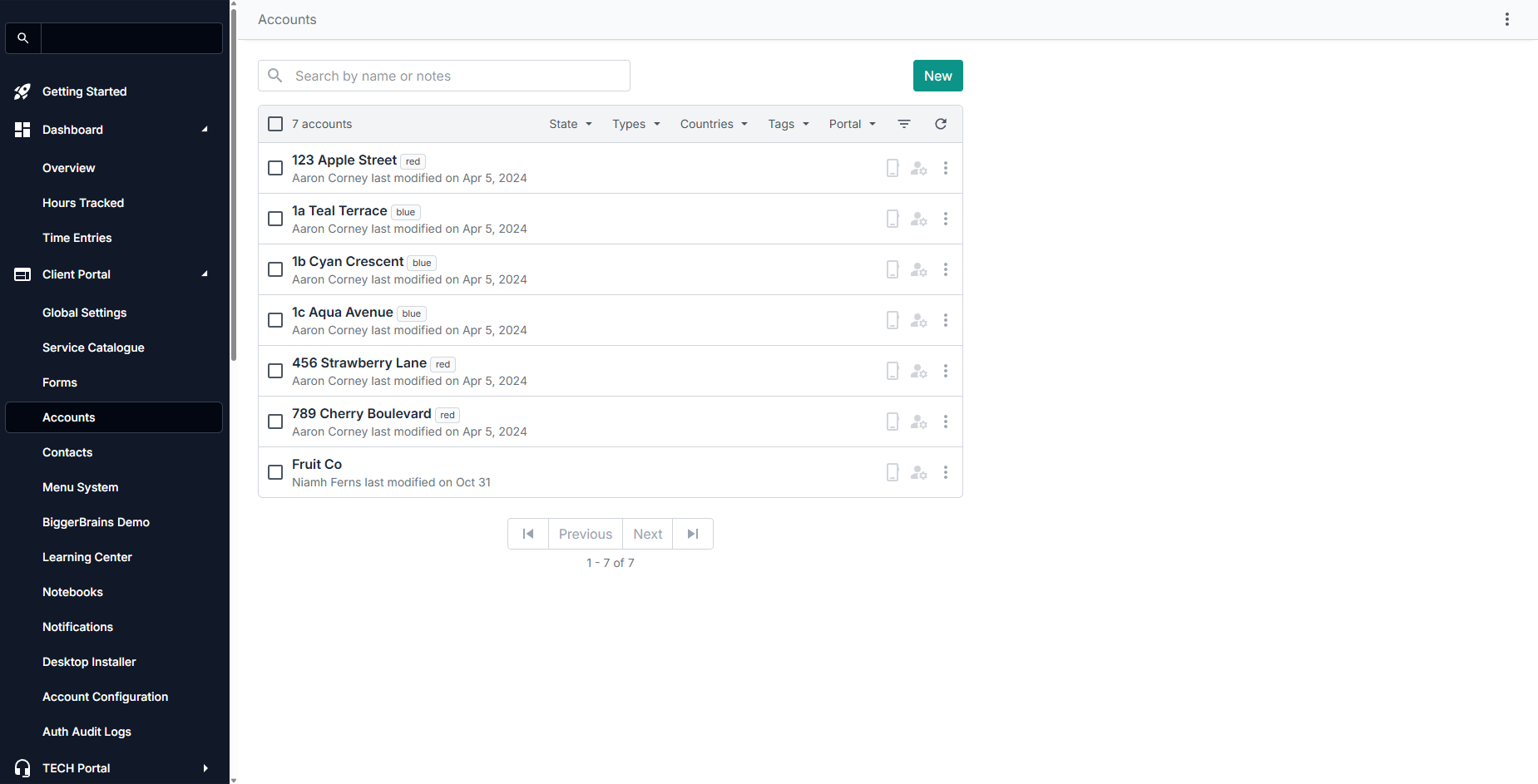
You can access this page from Client Portal > Accounts. You will see a page that looks like this, which shows all the company accounts under your instance:
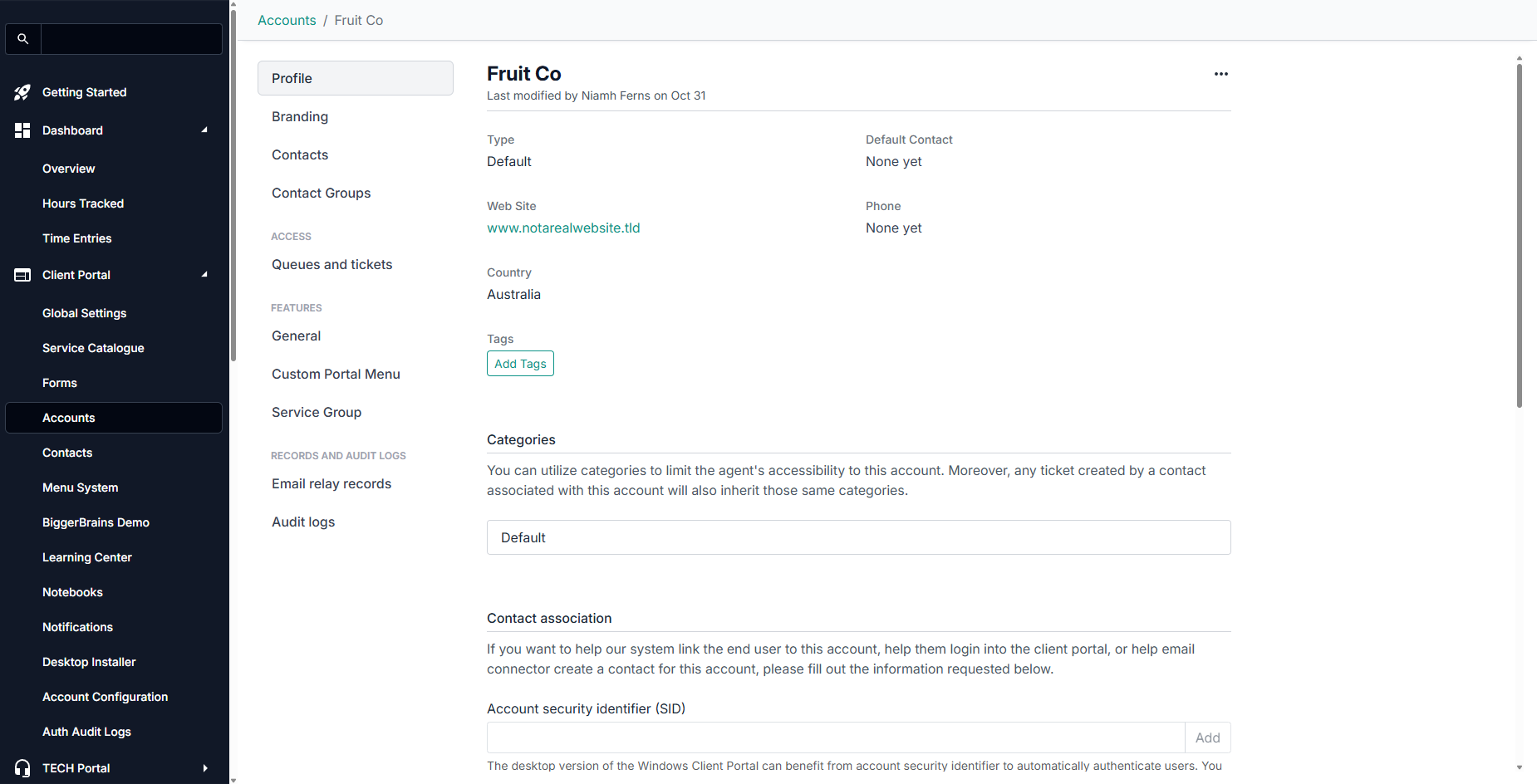
From this page, you can select which account you want to manage by clicking on the account name. This will bring you to the configuration page for that specific account:
Filtering Accounts
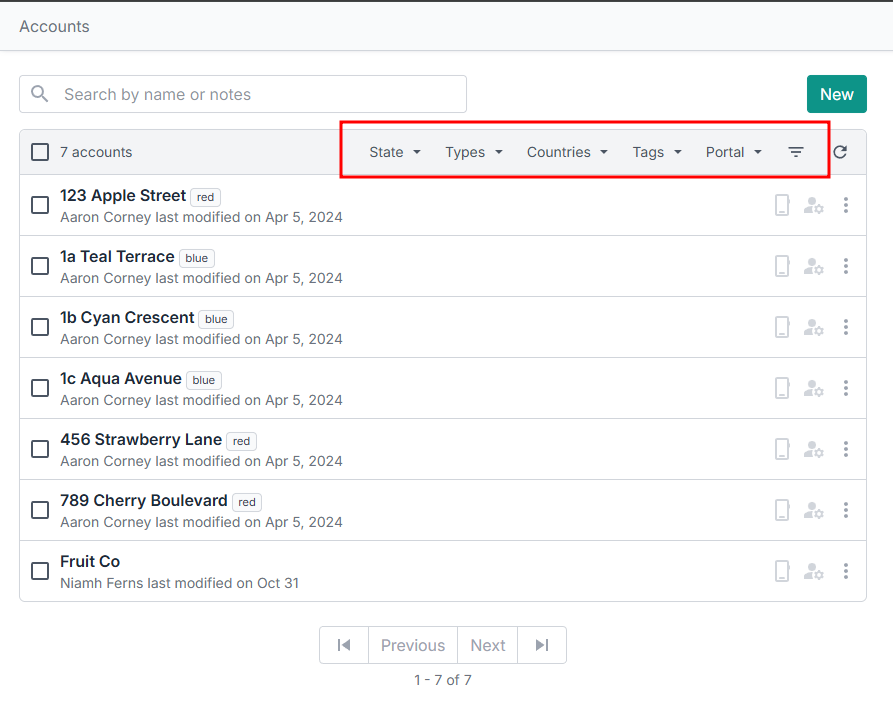
As the number of accounts you handle grows, managing which ones have specific configurations can get overwhelming. To make it easier for you to manage this, DeskDirector uses tags and configuration filters. These appear in the account list view for you to use:
Profile
This page will show you a company account's details like its name, phone number, type and a link to their website. You can also add account-specific tags to help you manage and organise them.
You will also see an authentication section where you can configure how users under that account log into DeskDirector.
Branding
The branding section is used to customise/personalise the portal, specific to the company. On this page, you can specify company-specific branding like favicon, logo, mobile logo, and basic colour theme. These will be used by any contacts under the company when they are using the client portal
Contacts
This lists all the contacts that are under the company. You can manage contacts by clicking on their names.
Contact Groups
This section is where contact groups for an account are created and managed. Here, you can create groups, add contacts to groups, and assign roles to contacts per group. You can also assign a Service Group to each Contact Group here.
Queues and tickets
This is similar to the global ticket settings, but any account-specific changes done here will override the current global settings (see cascading override).
Features
This is similar to the global features settings discussed here. Any account-specific changes will override the current global settings (see cascading override).
General
Identical to the global ticket settings, but any company-specific changes done here will override the current global settings (see cascading override). Check out these guides regarding permissions in DeskDirector for more information
Custom Portal Menu
On this page, you can select which menu an account is shown in. Without changing it, the account will see/use the default menu set.
Service Group
In this section, you can specify a Service Group to define which Service Catalogue is available for an account.
