Table of Contents
Setting up AI Service Providers
 Updated
by Niamh Ferns
Updated
by Niamh Ferns
Overview
DeskDirector supports integration with various generative AI service providers to enhance your ticketing system's AI capabilities. Before using any AI features in DeskDirector, you'll need to set up one of your preferred AI service providers. This knowledge base article will guide you through setting up different AI service providers.
Supported AI Service Providers
Provider | Ticket Summary | Tech Copilot | Client Portal Assistant | Smart Alert | Knowledge Base |
✅ | ✅ | ✅ | ✅ | ✅ | |
✅ | ✅ | ✅ | ✅ | ✅ | |
✅ | ✅ | ✅ | ✅ | ✅ | |
(with OpenAI-compatible API) | ✅ | ✅ | ✅ | ✅ | ❌ |
(with OpenAI-compatible API) | ✅ | ✅ | ✅ | ✅ | ❌ |
Setting Up AI Service Providers
- Navigate to the AI services integration settings page in your Admin Portal or within the DeskDirector Teams app
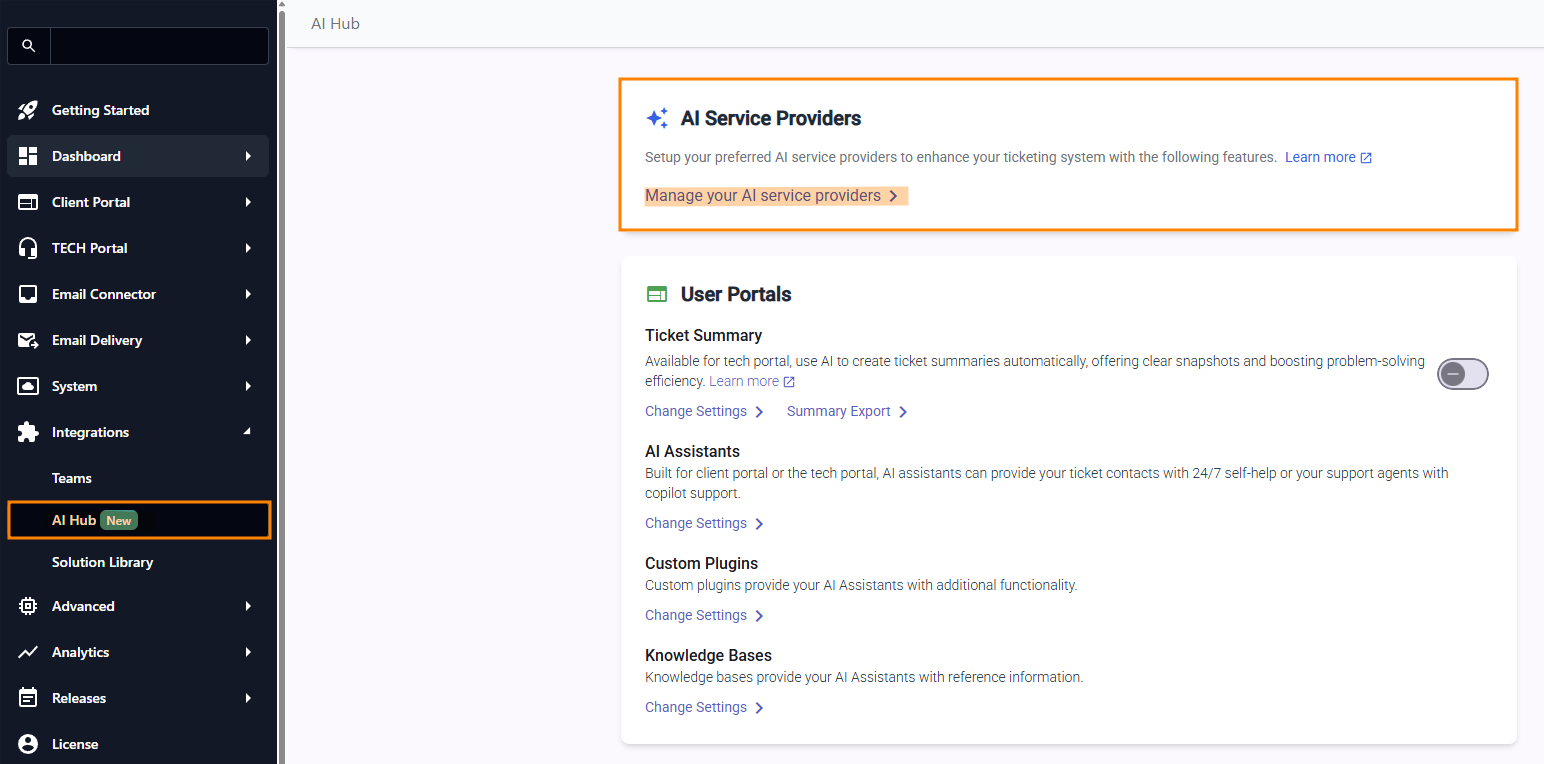
- Click on Manage your AI service providers
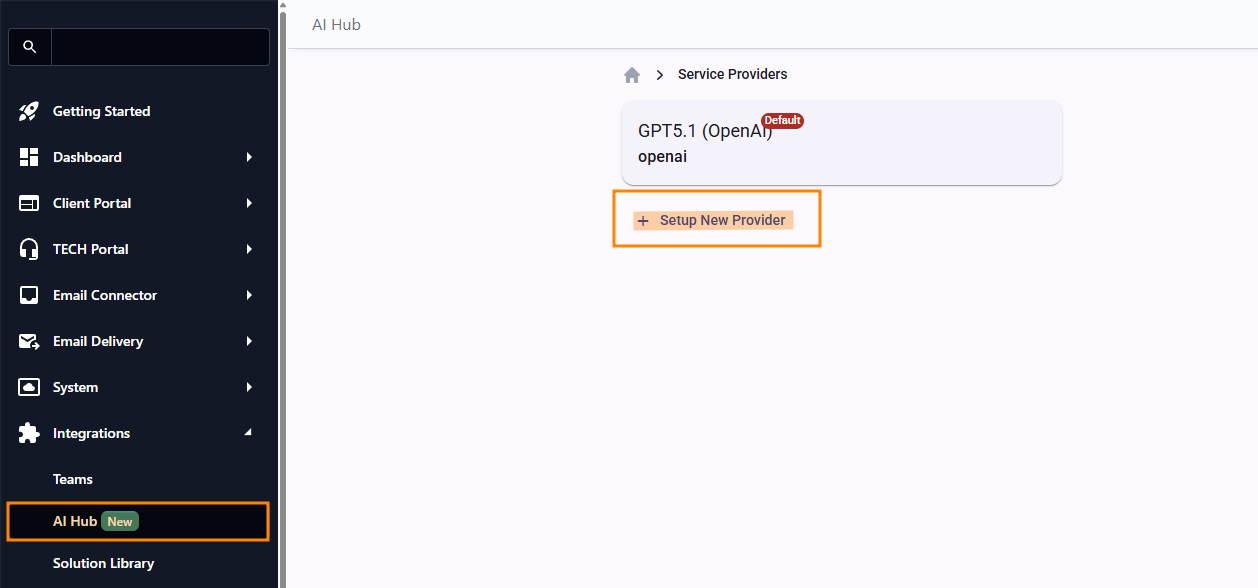
- Select the service provider type from a dropdown or click + Set Up New Provider
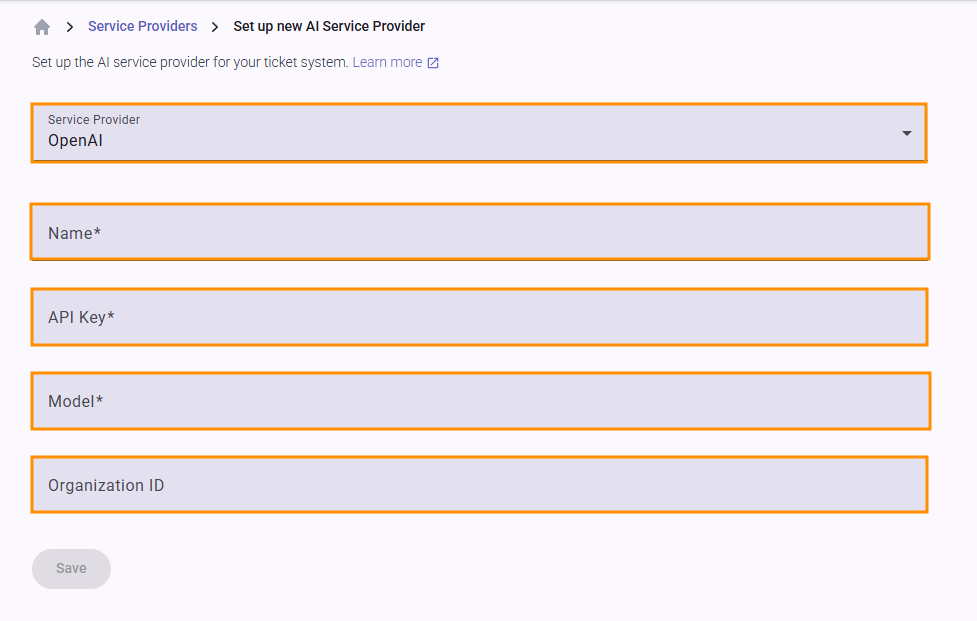
- Fill in the required configuration details
- Click Save to complete the setup
OpenAI Setup
Required Details
- Name (custom identifier for your configuration)
- API Key
- Model ID
- Optional: Organisation ID
Setup Steps
- Obtain an API Key from OpenAI's Platform
- Select your preferred model (e.g., gpt-3.5-turbo, gpt-4) from the available models
- Enter your Organisation ID if applicable
Official Documentation:
Azure OpenAI Setup
Required Details
- Name
- API Key
- Model ID
- Endpoint
- Deployment Name
Setup Steps
- Create and deploy an Azure OpenAI resource (model) in the Azure Portal via Azure AI Foundry
- Obtain your API key, endpoint, and deployment details from the deployed model (model name, model ID, deployment nameIn this screenshot, the deployment name and name are both
gpt-4o-mini.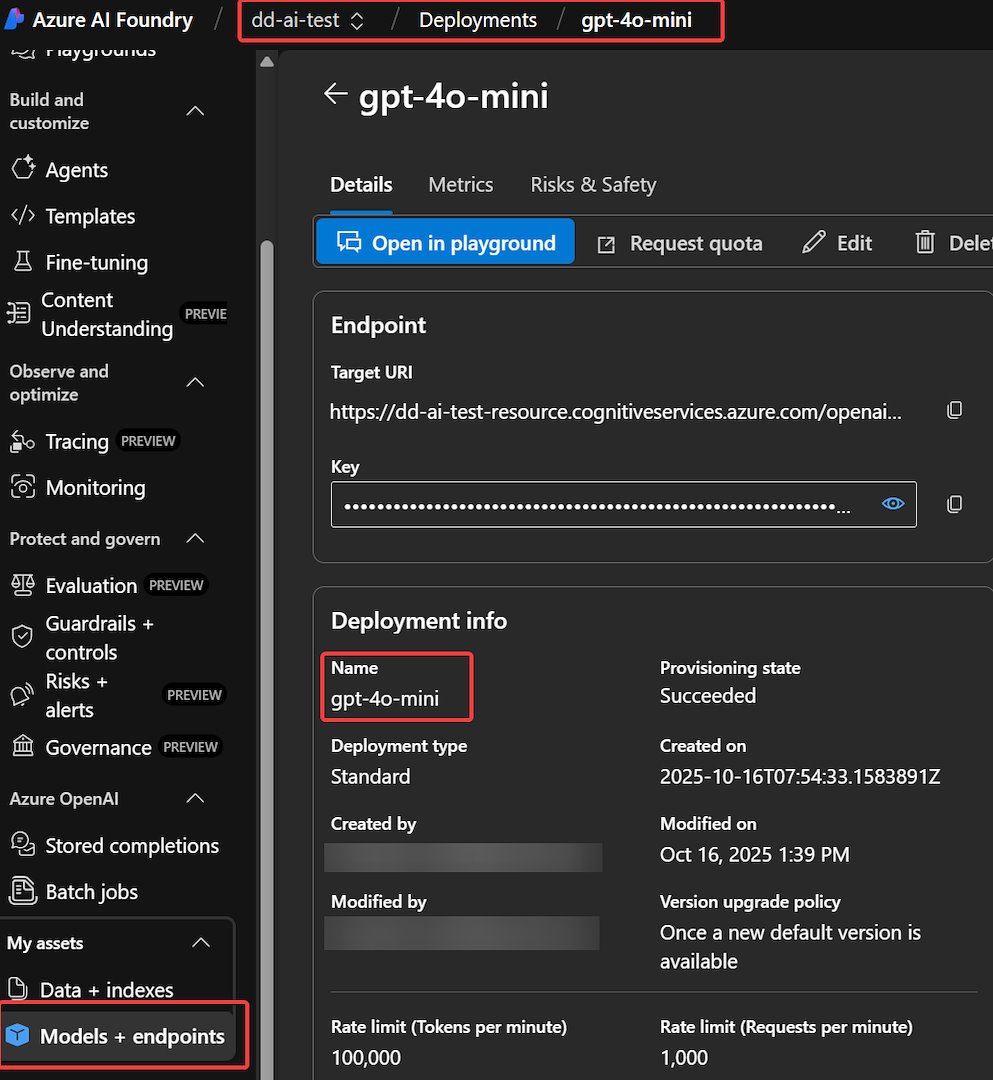
- Enter the configuration information
Official Documentation:
Google AI Setup
Obtain Google API Key
Configuration Details
- Provider Type: Select Google
- Name: for example
Google Gemini - API Key: Your Google Gemini API key
- Model: for example
gemini-2.0-flash
Google-Specific Resources
Groq Setup
Obtain Groq API Credentials
- Visit Groq's Developer Platform
- Create an account or log in
- Generate an API key in the Credentials section
Configuration Details
- Provider Type: Select Other
- Name: for example
Groq AI - API Key: Your Groq API key
- Model ID: for example
llama2-70b-4096 - Endpoint:
https://api.groq.com/openai/v1
Groq-Specific Resources
Other (OpenAI-compatible) Providers
Required Details
- Name
- API Key
- Model ID
- Endpoint
Supported Providers
Providers with OpenAI-compatible APIs can be configured using this option, such as:
- Anthropic Claude
- Custom model servers
Note: Verify API compatibility before configuration
Best Practices
- Use the most appropriate model for your use case
- Monitor API usage and costs
- Regularly update your AI service provider configurations to take advantage of the newer or cost-effective models
Troubleshooting
- Ensure your API key is correct and active
- Ensure the large language model is valid
- Contact DeskDirector support for integration-specific issues and the vendors for the AI API-specific issues
