Getting Started with DeskDirector
DeskDirector Portals
Browser Support
What is the DeskDirector Admin Portal?
What is the DeskDirector Tech Portal
What is the DeskDirector Client Portal?
Desktop Portal
Managing Your Account
Admin Essentials
DeskDirector Features Overview
Logging in to DeskDirector
User Profiles & Profile Pictures
Managing Tickets with DeskDirector
Office Hours
How Searching Works
Embedding Help Page Media
Get started with the DeskDirector Power Automate Connector
Features
Portal Customization
Forms
Service Catalogue
Communication
Email Connectors
Notifications
Email Notifications
Actionable Messages for Emails
Real-Time Chats
Email Template Engine
Surveys
Broadcasts
Generative AI
Setting up AI Service Providers
Microsoft Foundry for DeskDirector
Knowledge Bases for AI Assistants
Custom Tools for AI Assistants
DeskDirector with Generative AI
AI Assistants in DeskDirector
Ticket Summary for TECH Portal
Advanced
Login & Authentication
Dashboard
Accounts
Contacts
Contact Groups
Approvals
Tags
Custom Domains
Task Lists
File Storage
The Learning Center
Portal Deep Linking
Auditing & Analytics
Microsoft Power Automate
Actions
Solutions
Featured Solution: Teams Ticket Discussion
Power Automate Template Gallery
Featured Solution: Ticket Briefing
Power Automate Administration
DeskDirector Power Platform Connector Reference
Power Automate Connector - Setting up your first flow
Microsoft Teams App
Introducing the DeskDirector for Microsoft Team App
Installing the Microsoft Teams App (Client Mode)
Installing the Microsoft Teams App (TECH Mode)
Setting up Tags for Teams Discussions (TECH Portal)
Branding the DeskDirector Teams App
DeskDirector Teams App Notifications
Contact Groups Integration with Microsoft Teams
Setting up Content Security Policy (CSP)
Advanced topic: Setting up Tech & Client Mode in the same tenancy
Integrating Microsoft Teams with DeskDirector Tech Portal
Smart Alerts for TECH Users
Integrations
Glossary
Security
Troubleshooting
Troubleshooting via Web Developer Tools
Desktop Portal - Common Issues
Contact & Service Agent Impersonation
Approvals - Common Issues
Microsoft Teams App - Common Issues
Email & Email Delivery - Common Issues
Login & Authentication - Common Issues
DeskDirector Desktop App - Installation Issues
Permissions & Access - Common Issues
Contact DeskDirector Support
Troubleshooting DeskDirector Connection Issues
Table of Contents
- All Categories
- Getting Started with DeskDirector
- Logging in to DeskDirector
Logging in to DeskDirector
 Updated
by Niamh Ferns
Updated
by Niamh Ferns
DeskDirector Login Steps
This article walks through the features and behaviour of the DeskDirector sign-in page.
- Enter email address
The user will need to enter the email address for the account they want to sign in to:
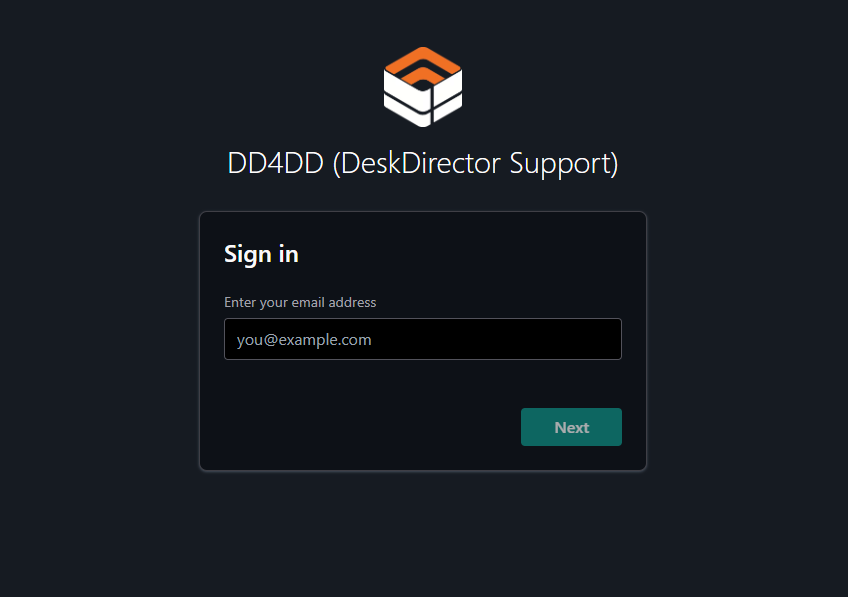
If the email address isn't associated with an existing contact, the user will have the opportunity to create a contact in Step 4. The user can only create a new contact if their email domain has been registered against an account on the associated account profile page inside the Admin Portal. If their domain is not registered against an account, they will see this message instead:
Your email address hasn't been registered and we're not able to automatically create an account for you. Send us an email at user@yourdomain.tld so we can create an account for you.
- Select platform
There are 3 platforms that a user may sign in to. They are the Admin Portal, Tech Portal, and Client Portal. These options will only display if the user's email address is associated with the corresponding entity. For example, if your email is associated with both a contact and a member/resource, then you will see all three platforms:
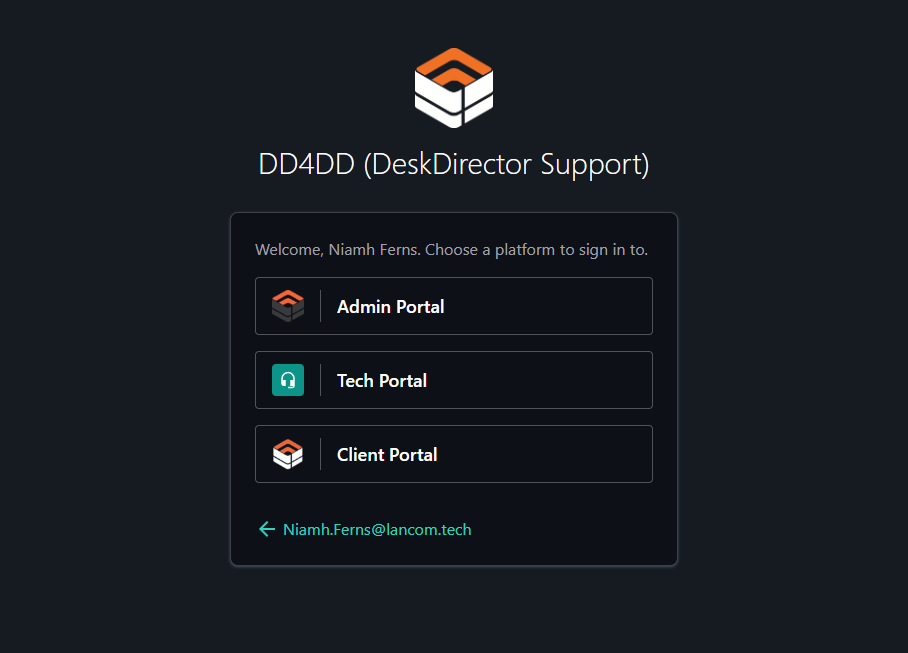
If your email address is only associated with a single entity type, this step will be skipped altogether. This means that most contacts will never see this page; they will skip straight to step 3.
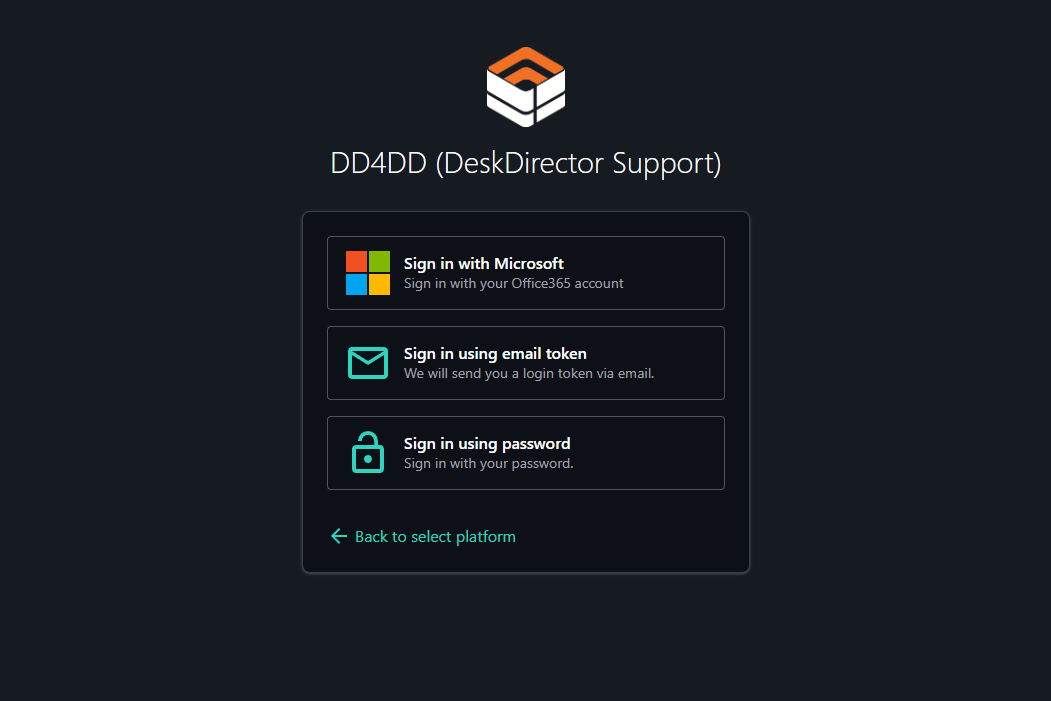
- Select sign-in method
There are 3 possible sign-in methods to choose from, depending on which features you have configured, and which platform the user has selected. These are:
- Microsoft OAuth
- Email token
- Password
- Create contact (Client Portal platform only)
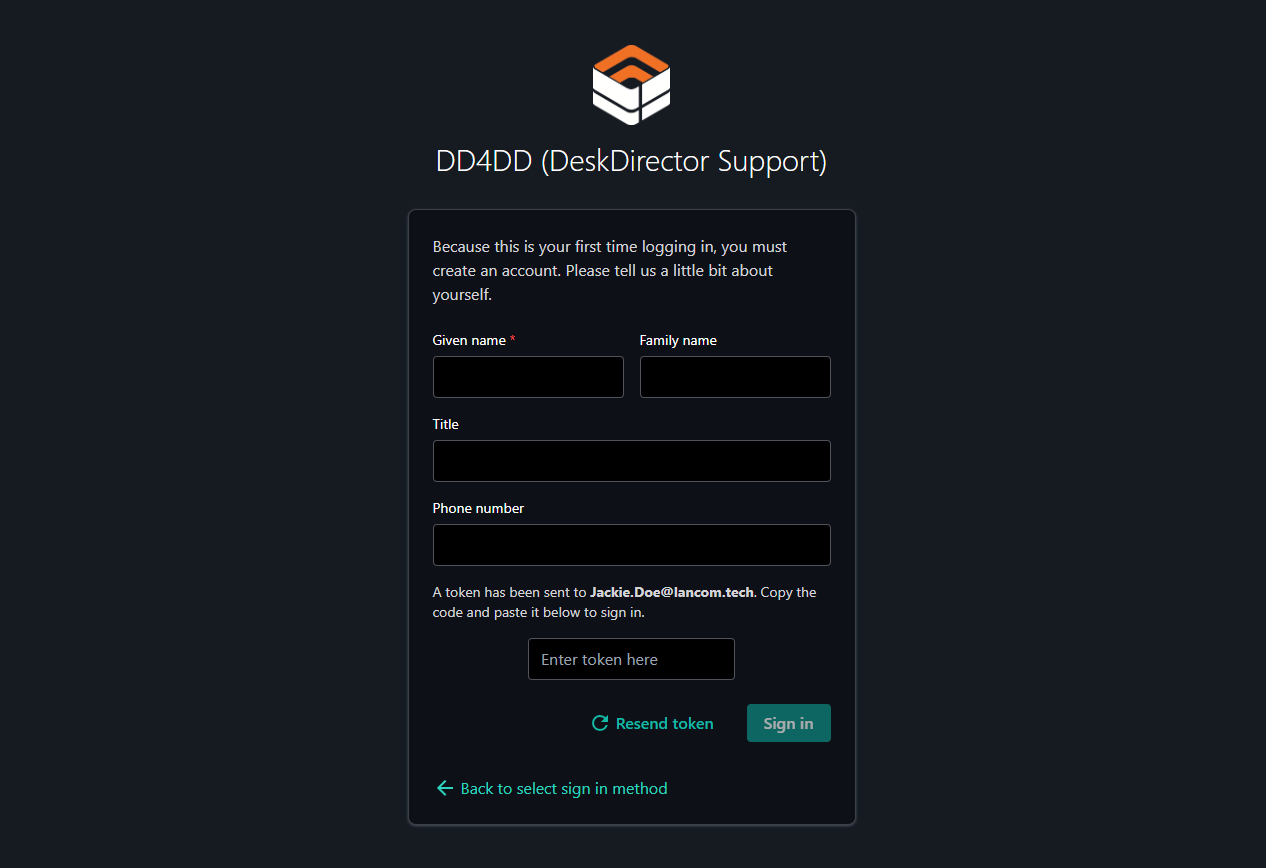
Depending on your Automatic Contact Creation configuration, if a contact doesn't already exist, the user will be able to create one as they sign in. Only Microsoft OAuth and the email token sign-in methods can be used in this situation. When using email token login, the user will have the option to enter some details about themselves:
- Optionally, stay signed in
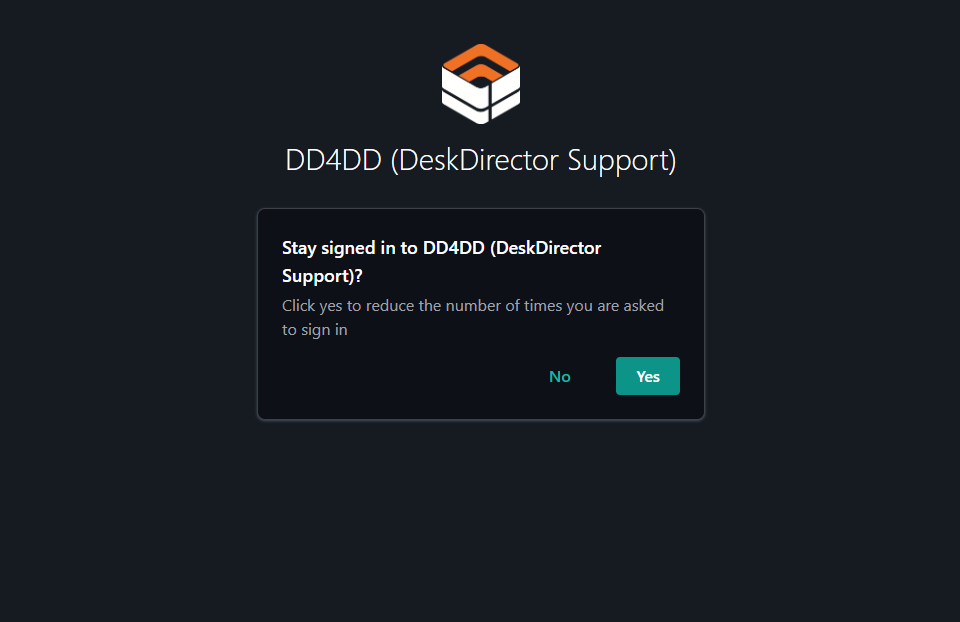
After the user has successfully signed in, they will be asked whether they want to stay signed in. If they choose "yes", a persistent cookie will be saved to their machine. If they select "no", a session cookie will be saved instead.
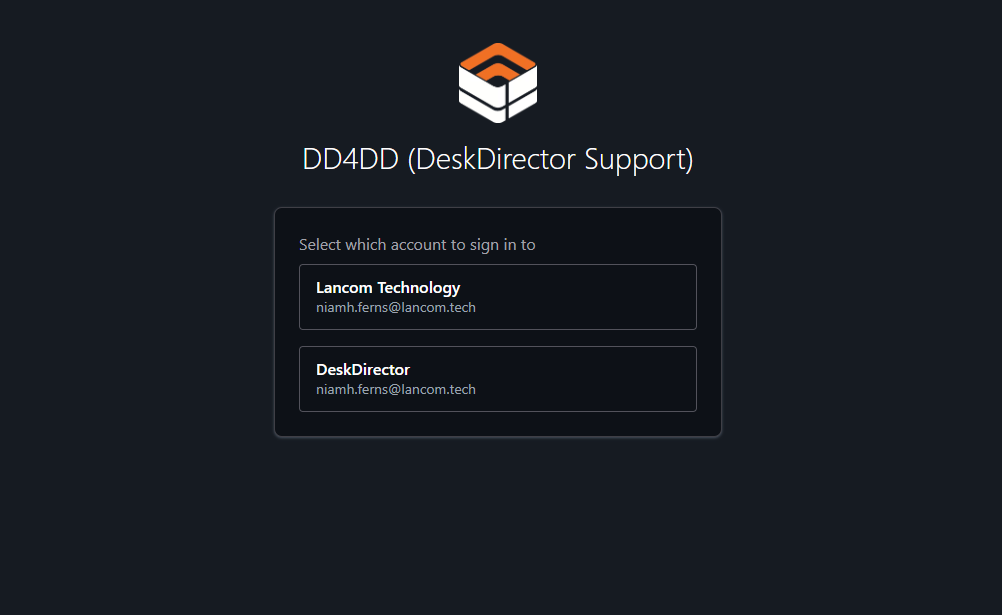
- Select account (Client Portal Only)
If the user has more than one account associated with their email address, they will have the chance to select which one to sign in to: