Table of Contents
Setting up Tags for Teams Discussions (TECH Portal)
 Updated
by Niamh Ferns
Updated
by Niamh Ferns
Start a conversation in Teams from a DeskDirector Ticket
We can start a discussion in a Teams channel by adding a custom tag to a ticket.
This feature allows ticket agents to initiate an internal conversation within Microsoft Teams for specific tickets in the DeskDirector Tech portal. This feature provides a streamlined and efficient way for ticket agents to communicate and collaborate on resolving customer issues, allowing them to resolve issues more quickly and effectively.
Key Benefits
- Centralised Communication: Links DeskDirector tickets to dedicated Teams conversations
- Real-Time Collaboration: Team members can discuss tickets internally while maintaining customer service quality
- Streamlined Workflow with AI: Generate, review, and send customer replies directly from Teams with your AI Assistant
Setup
Here's a step-through on how to set up this feature:
Here's an interactive tutorial
** Best experienced in Full Screen (click the icon in the top right corner before you begin) **
- Browse to a Teams Channel with DeskDirector installed in TECH Mode
- From the menu items of the Team Channel, select your DeskDirector application, followed by Tag to chat
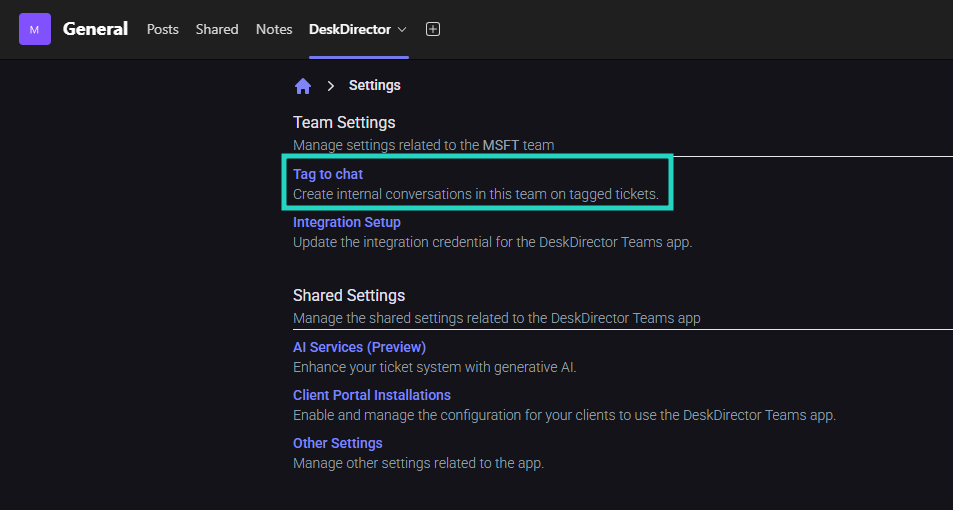
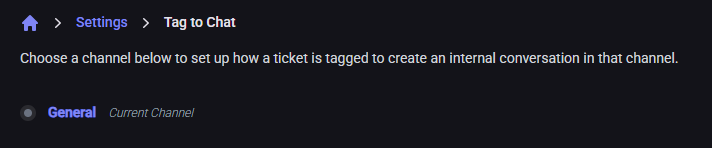
- Select from the available teams channels:
- Enter your preferred tag, followed by enabling the Use Tag to chat slider:
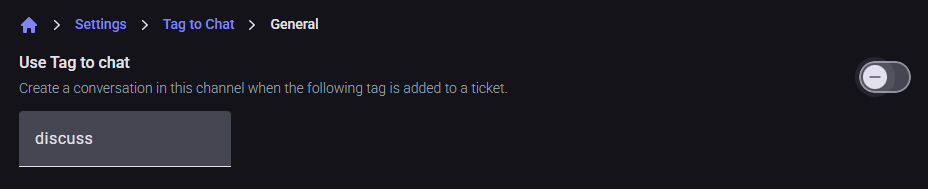
- The tag cannot be edited while the feature is enabled, to update the tag, you must first disable the feature
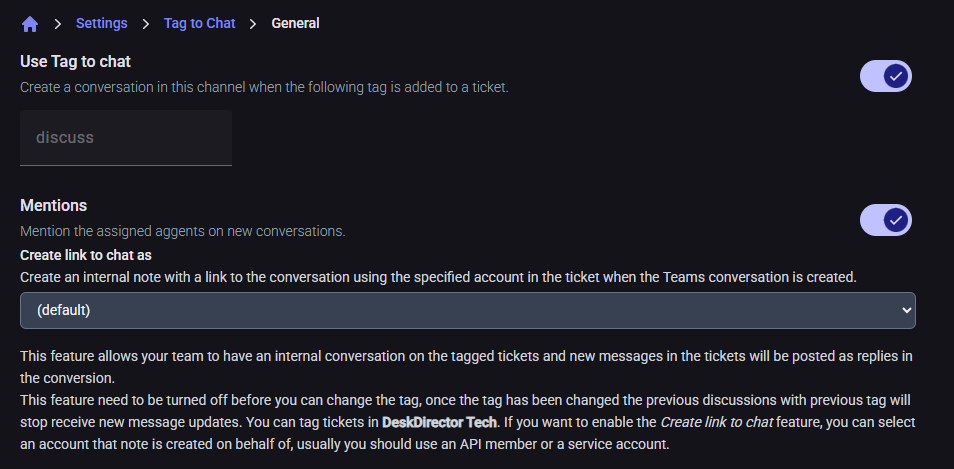
- Optionally, enable the Mentions feature
How to Create a New Conversation
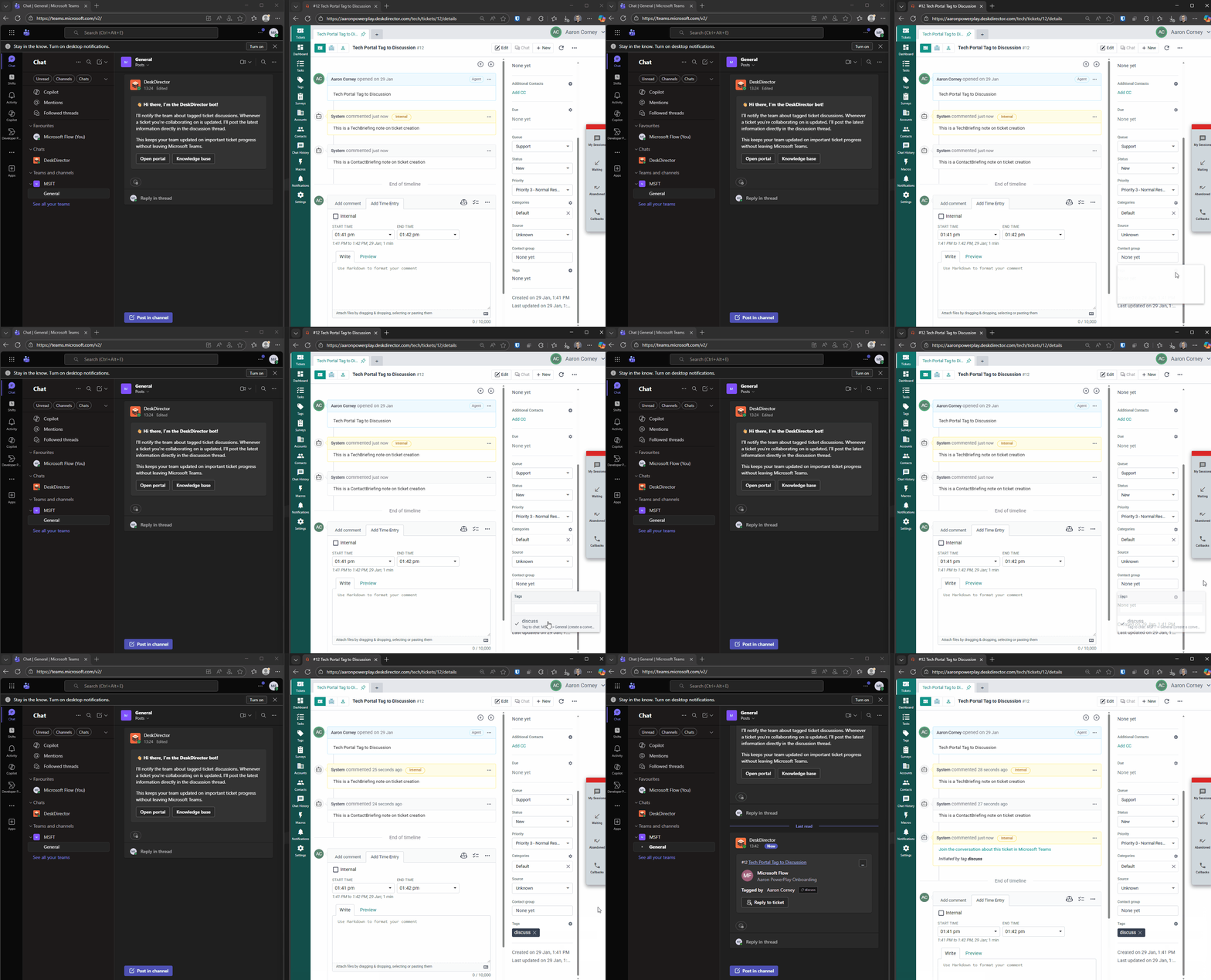
- Open the Ticket in DeskDirector TECH Portal
- Navigate to the ticket you want to discuss internally
- Add the Configured Tag
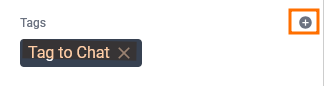
- Add the pre-configured "Tag to Chat" tag during your setup to the ticket
- Automatic Teams Conversation Creation

- The DeskDirector Teams app automatically creates a new conversation in the configured Teams channel
- The conversation is linked to the specific ticket
- Team Collaboration
- Channel members can now chat internally about the ticket
- All internal discussions remain separate from customer-facing communications
- Automatic Updates
- New messages added to the original ticket are automatically posted to the Teams conversation
- Team members stay informed of ticket updates in real-time
How to Generate AI-Assisted Replies
The AI Copilot feature analyses both ticket messages and internal Teams discussions, providing more informed suggestions based on your team's insights and expertise.
- Access the Copilot
- In the Teams conversation, click the "Reply to ticket" button on the first message
- This opens the AI Copilot interface
- Grant Permissions (First-time or Limited Access)
- If prompted, provide consent for accessing Teams messages:
- "Allow Once" - Grant permission for this session only
- "Always Allow" - Grant permanent access for all team members and future use
- If prompted, provide consent for accessing Teams messages:
- AI Analysis and Suggestion Generation
- The configured AI assistant for the ticket queue processes the request
- If no queue-specific assistant is configured, the default AI assistant is used
- The AI analyses:
- Complete ticket message history
- Internal Teams discussion messages
- Available knowledge base articles and tools
- Review and Refine
- Review the AI-generated reply suggestion and add any additional context or instructions
- Click "Request a New Suggestion" to get an updated response
- Send the Reply
- Review and edit the final suggested reply
- Click "Send Reply to Ticket" to post the response to the customer in the DeskDirector ticket
- Follow Up
- Click "View Ticket" once the reply has been sent to the ticket to open the embedded Tech Portal
