Getting Started with DeskDirector
DeskDirector Portals
Browser Support
What is the DeskDirector Admin Portal?
What is the DeskDirector Tech Portal
What is the DeskDirector Client Portal?
Desktop Portal
Managing Your Account
Admin Essentials
DeskDirector Features Overview
Logging in to DeskDirector
User Profiles & Profile Pictures
Managing Tickets with DeskDirector
Office Hours
How Searching Works
Embedding Help Page Media
Get started with the DeskDirector Power Automate Connector
Features
Portal Customization
Forms
Service Catalogue
Communication
Email Connectors
Notifications
Email Notifications
Actionable Messages for Emails
Real-Time Chats
Email Template Engine
Surveys
Broadcasts
Generative AI
Setting up AI Service Providers
Microsoft Foundry for DeskDirector
Knowledge Bases for AI Assistants
Custom Tools for AI Assistants
DeskDirector with Generative AI
AI Assistants in DeskDirector
Ticket Summary for TECH Portal
Advanced
Login & Authentication
Dashboard
Accounts
Contacts
Contact Groups
Approvals
Tags
Custom Domains
Task Lists
File Storage
The Learning Center
Portal Deep Linking
Auditing & Analytics
Microsoft Power Automate
Actions
Solutions
Featured Solution: Teams Ticket Discussion
Power Automate Template Gallery
Featured Solution: Ticket Briefing
Power Automate Administration
DeskDirector Power Platform Connector Reference
Power Automate Connector - Setting up your first flow
Microsoft Teams App
Introducing the DeskDirector for Microsoft Team App
Installing the Microsoft Teams App (Client Mode)
Installing the Microsoft Teams App (TECH Mode)
Setting up Tags for Teams Discussions (TECH Portal)
Branding the DeskDirector Teams App
DeskDirector Teams App Notifications
Contact Groups Integration with Microsoft Teams
Setting up Content Security Policy (CSP)
Advanced topic: Setting up Tech & Client Mode in the same tenancy
Integrating Microsoft Teams with DeskDirector Tech Portal
Smart Alerts for TECH Users
Integrations
Glossary
Security
Troubleshooting
Troubleshooting via Web Developer Tools
Desktop Portal - Common Issues
Contact & Service Agent Impersonation
Approvals - Common Issues
Microsoft Teams App - Common Issues
Email & Email Delivery - Common Issues
Login & Authentication - Common Issues
DeskDirector Desktop App - Installation Issues
Permissions & Access - Common Issues
Contact DeskDirector Support
Troubleshooting DeskDirector Connection Issues
Table of Contents
- All Categories
- Microsoft Teams App
- Branding the DeskDirector Teams App
Branding the DeskDirector Teams App
 Updated
by Niamh Ferns
Updated
by Niamh Ferns
Teams App Branding
The DeskDirector Teams app provides the ability to brand and personalise the app to match your client portal's look and feel. This is a great way to ensure consistency and professionalism across all tools and platforms.
Think of branding your DeskDirector Teams app like installing a new app on your smartphone. The app icon and general theme are set by the smartphone's system settings - akin to Microsoft Teams in this case. However, once you open the app, it can have its own look and feel, which is controlled by the settings within the app itself. In the context of the DeskDirector Teams app, this is analogous to the embedded portal that can be customised via your DeskDirector Admin Portal.
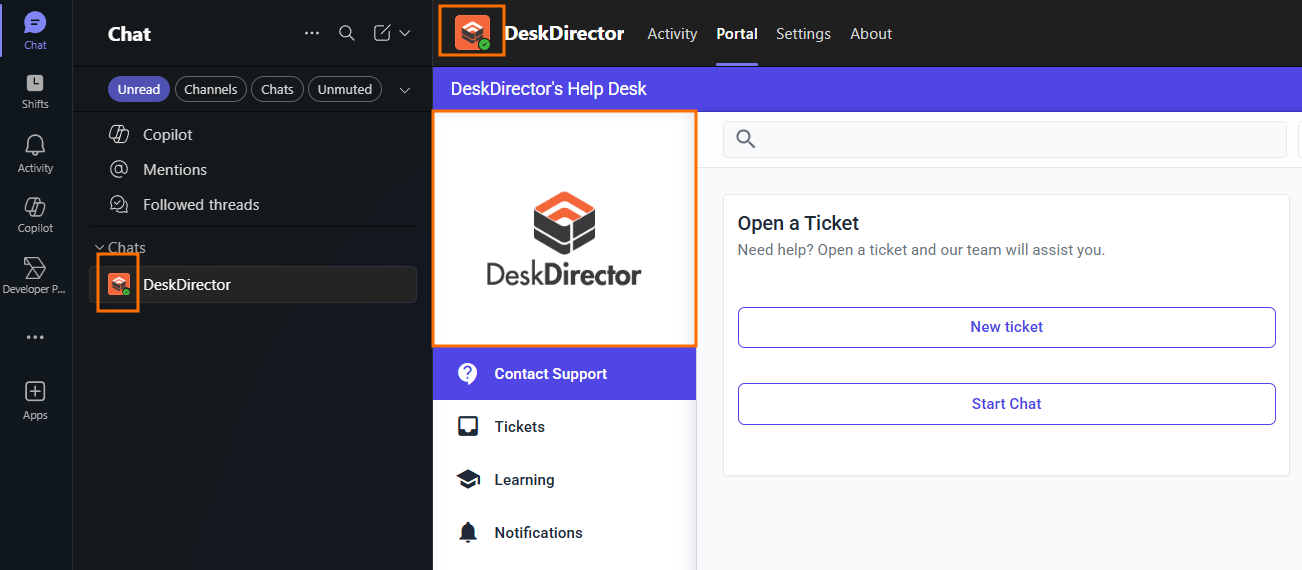
Branding Settings in Microsoft Teams
Your need access to your clients' Microsoft Teams Admin Center to customise the DeskDirector Teams app. The properties you can modify include:
- Short name
- Short description
- Full description
- Privacy policy URL
- Website URL
- Terms of use URL
- App icon
- Outline colour of the icon
- Accent colour
Here is the link to the DeskDirector app in Microsoft Team Admin Center. Please make sure to sign in as an admin user of the Teams tenant that you want to customise the branding for.
Branding of the embedded portal
This shares the same branding your DeskDirector Client Portal. For more information, please visit our Custom Branding help article.
