Table of Contents
Sync Entra Groups Solution
 Updated
by Niamh Ferns
Updated
by Niamh Ferns
Sync Entra Groups Solution
The Sync Entra Groups solution provides a simple way for you to automatically keep your DeskDirector Contact Groups in line and updated with your groups in Entra. This functions by automatically syncing contacts, and optionally contact groups, to DeskDirector based on users in Entra groups.
Deployment
If you are unsure whether these prerequisites are met, please visit our PowerPlay Deployment Quickstart Guide
In this section, we'll cover how to go through the deployment process for the Sync Entra Groups Solution.
For the deployment to work, you will need to deploy the solution library, then deploy either the ALM or self-service Power Automate solution.
Solution Market Place Deployment
- Log in to the DeskDirector Support Portal
- Select the
Tokity PowerPlayApps menu item - Locate the Sync Entra Groups solution, and select
Download Solution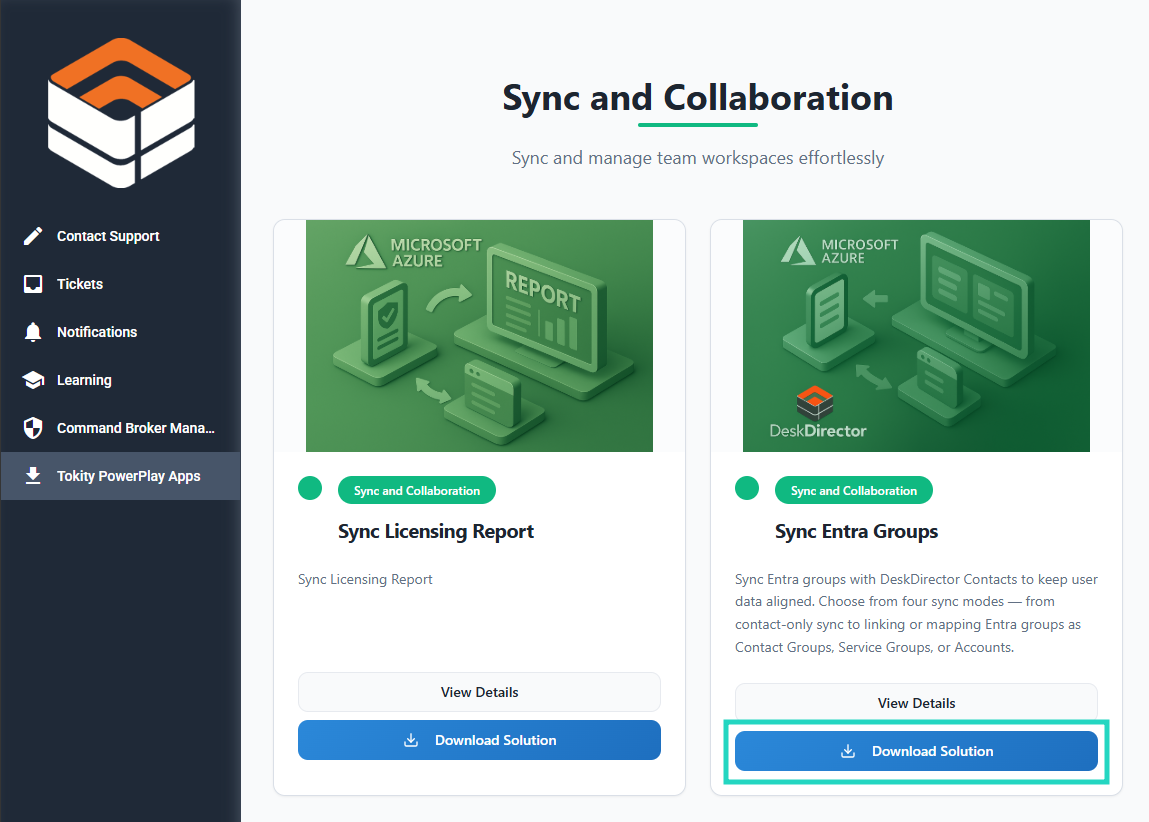
- Select
Request ALM Deployment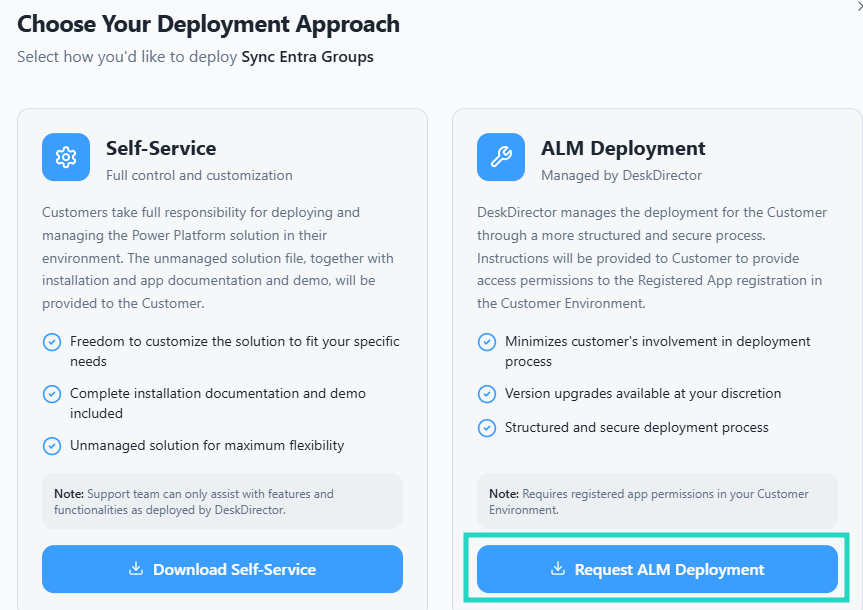
- A support ticket will be logged to track the progress of the solution's deployment
- From the
Ticketsmenu, select the recently createdPowerPlay App Deployment Request: Sync Entra Groupsticket - You can proceed to the remaining configuration steps once the Sync Entra Groups solution is deployed to both your ServOrg and CustOrg environments:
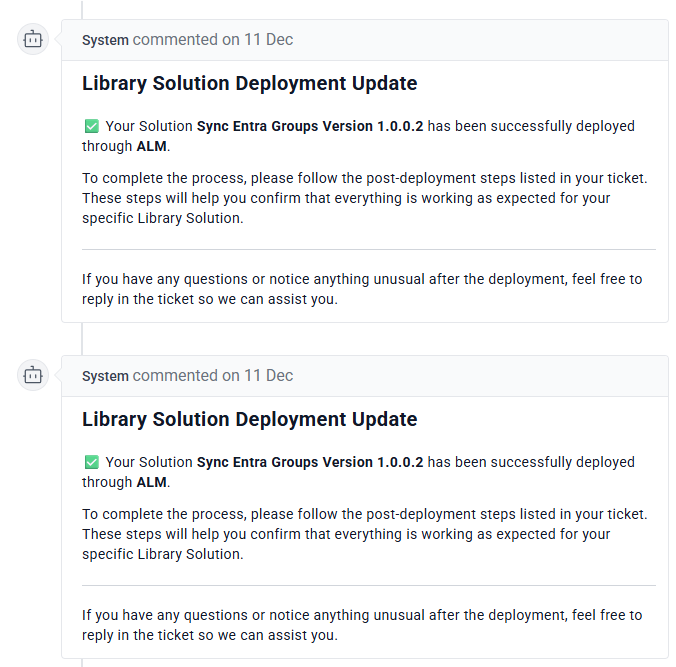
- To validate this step, log in to Power Apps as your Onboarding Administrator
- From the top right corner, select your
ServOrgenvironment: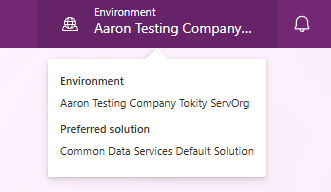
- Under Solutions > Managed, confirm the
IECB-ServOrg-App-Sync User Groupsolution is available: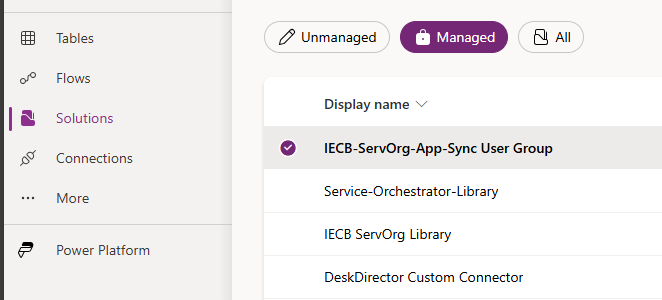
- Repeat this process for your
CustOrgenvironment
Solution Library Deployment
Open your Admin Portal and head to System Management > Solution Library.
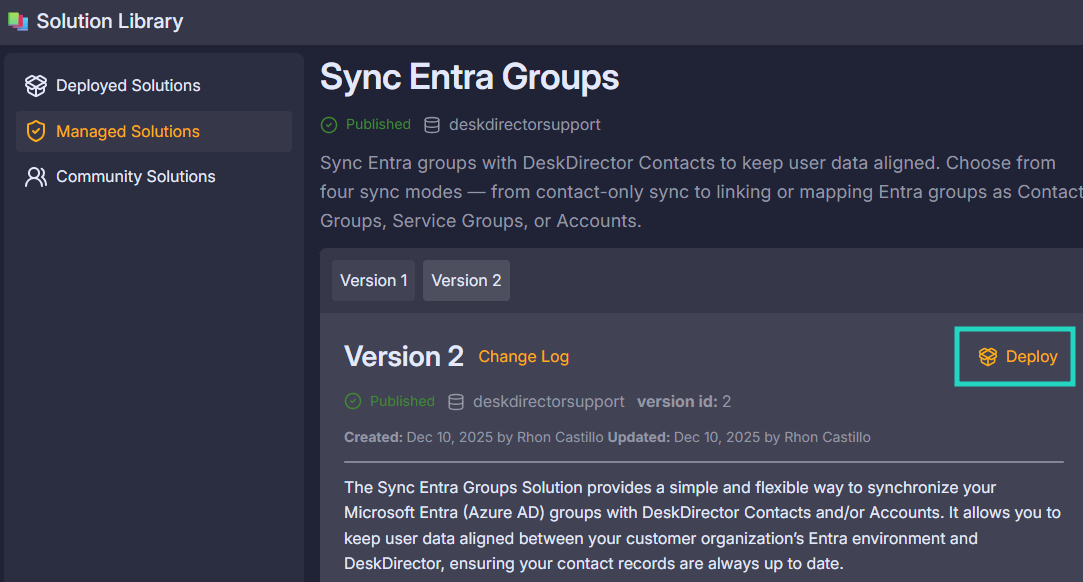
- Select the Managed Solutions tab and open the Sync Entra Groups solution.On this page, you can also see a version history as well as a list of features that will be deployed.
- Select Deploy
- Follow the on-screen prompts to select a board/queue
- Confirm your deployment by selecting Deploy, and wait until the
Deployment of solution ... has finished messageis displayed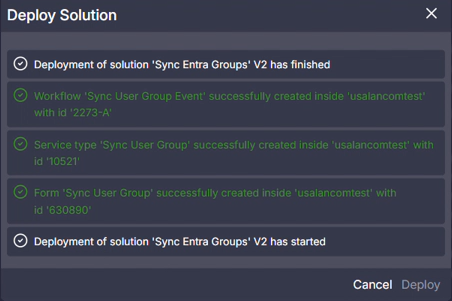
ServOrg Configuration Steps
Connection References
- Log in to Power Apps as your Onboarding Administrator
- From the top right corner, select your
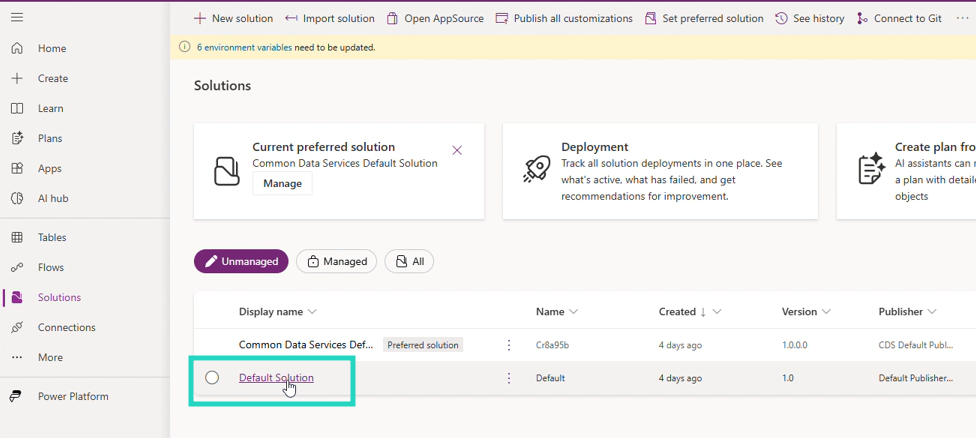
ServOrgenvironment - From the Solutions menu, select Unmanaged > Default Solution:
- Select the Connection References menu
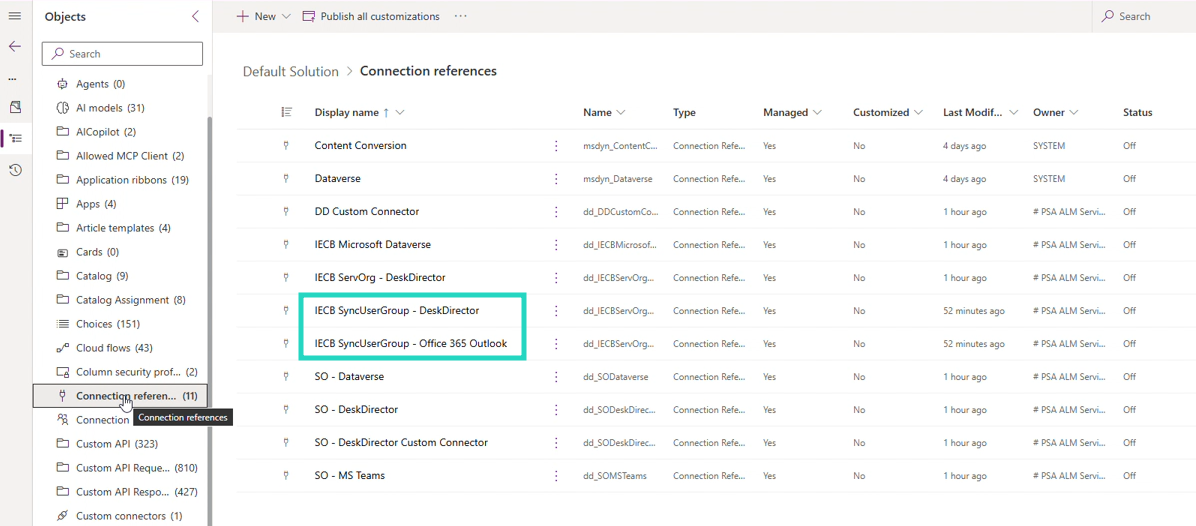
- For each DeskDirector solution Connection Reference:
- Select the Connection Reference
- Select the Connection drop-down
- Select the relevant Connection created during the PowerPlay Post-Deployment Steps
- Select Save and Save Changes
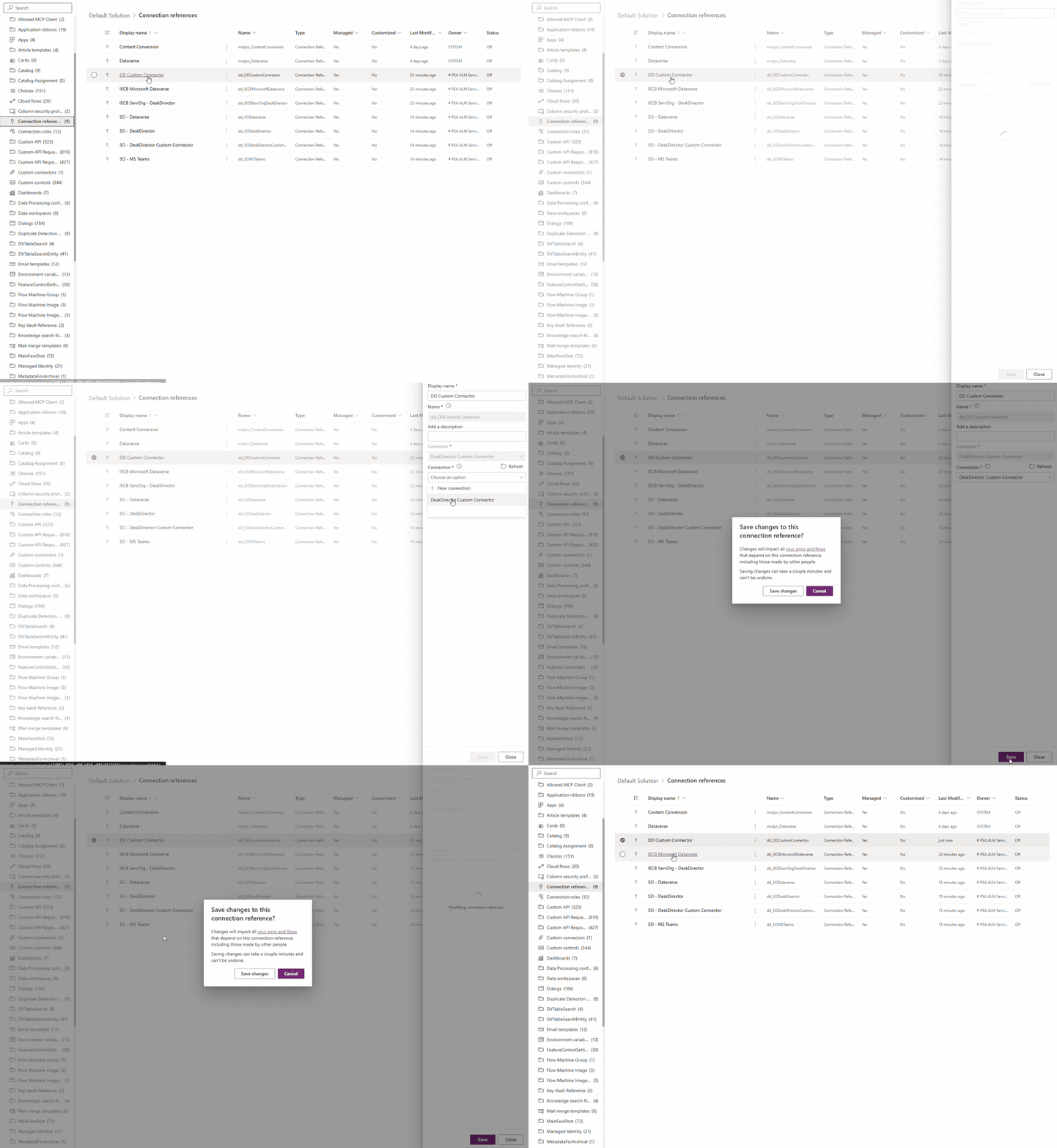
- IECB SyncUserGroup - DeskDirector
- IECB SyncUserGroup - Office 365 Outlook
Environment Variables
- Still within our Default Solution, select Environment variables from the Objects panel
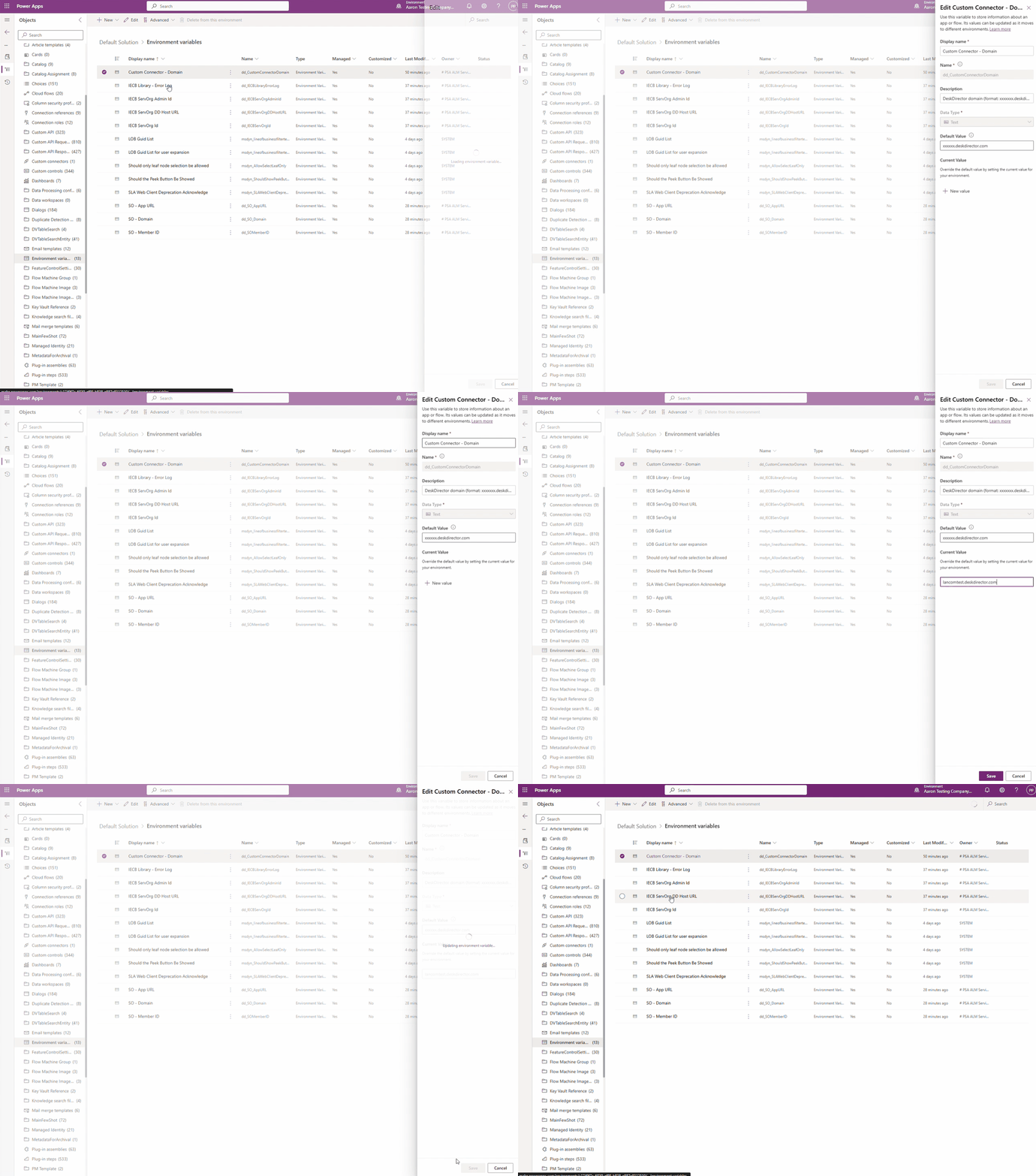
- Update the following environment variables:
- IECB SyncUserGroup - Approval Required: An optional value if approval is required for the submission of the
Sync User Groupconfiguration form - IECB SyncUserGroup - Board ID:
idof the board or queue that theSync User Groupconfiguration form will be submit on - IECB SyncUserGroup - Closed Status ID:
idof a closed status on the referencedIECB SyncUserGroup - Board IDboard or queue - IECB SyncUserGroup - Email Recipients: Email address(es) who will receive a daily sync report:
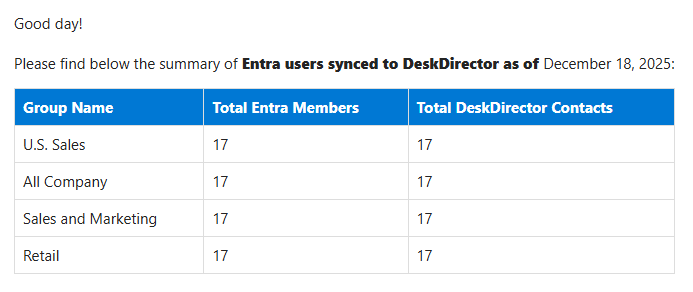
- IECB SyncUserGroup - Event ID: The
idvalue of theSync User Group Eventevent from your Admin Console- If this event is not yet in an Enabled state, select More Options > Enable
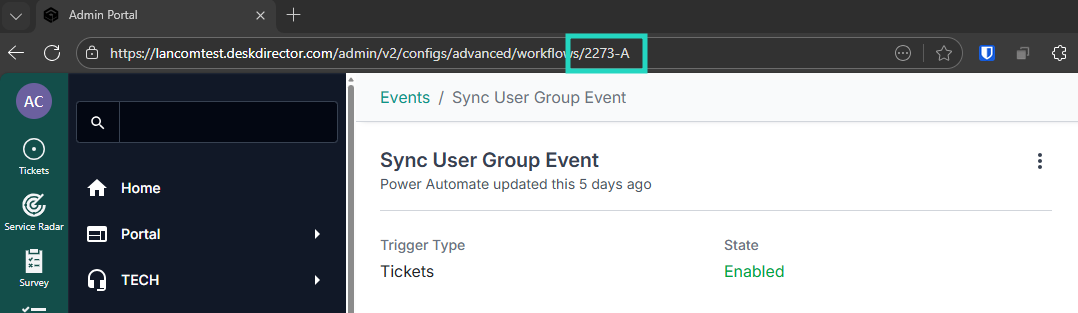
- If this event is not yet in an Enabled state, select More Options > Enable
- IECB SyncUserGroup - In Progress Status ID:
idof an in progress status on the referencedIECB SyncUserGroup - Board IDboard or queue
- IECB SyncUserGroup - Approval Required: An optional value if approval is required for the submission of the
Flow Enablement
- Log in to Power Apps as your Onboarding Administrator
- From the top right corner, select your
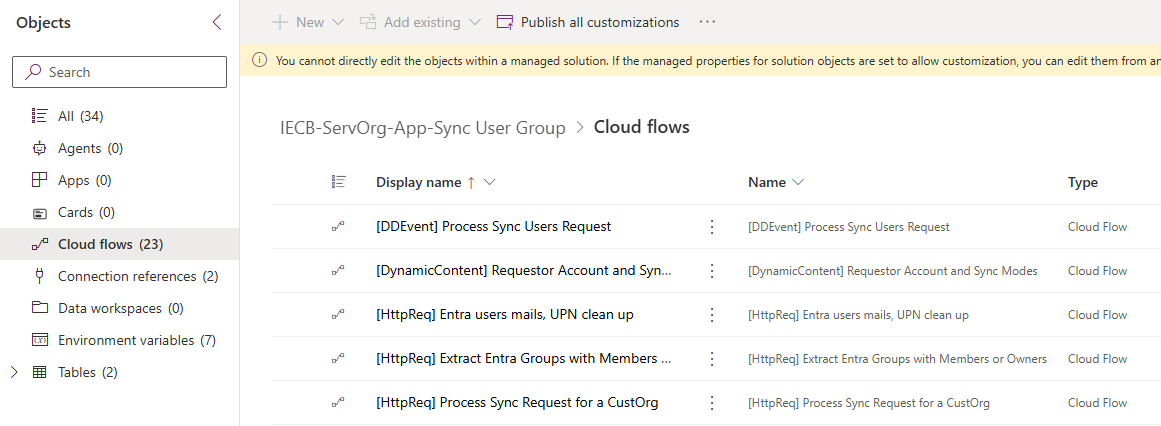
ServOrgenvironment - Navigate to your ServOrgs Managed Solutions and open the IECB-ServOrg-App-Sync User Group
- Select Cloud flows in the Objects panel
- Tier 1
- [DynamicContent] Requestor Account and Sync Modes
- [HttpReq] Entra users mails, UPN clean up
- [HttpReq] Extract Entra Groups with Members or Owners
- [Httpreq] Removal - Non-Entra member in Account (child)
- [Httpreq] Removal - Non-Entra member in Contact Group (child)
- [Httpreq] Removal - Non-Entra member in Service Group (child)
- [HttpReq] Sync Checking - Send Email Update (child)
- [HttpReq] SyncUsers - Add Contacts to Contact Group (Child)
- [HttpReq] SyncUsers - Create or Activate DD Contacts (Child)
- [HttpReq] SyncUsers - Get DD Contacts (Child)
- [HttpReq] SyncUsers - Link Service Group to Contacts (Child)
- [Manual] Update Sync Mode Dynamic List
- [Schedulde] Update IECB CustOrgs Dynamic List
- [Scheduled] Update CustOrg's Entra Groups Table
- Tier 2
- [HttpReq] Sync Checking
- [HttpReq] Sync Mode 1 - Sync contacts
- [HttpReq] Sync Mode 2, 5 - Contact group for Entra Members
- [HttpReq] Sync Mode 3 - Service Groups
- [HttpReq] Sync Mode 4 - Entra Groups as Accounts
- [HttpReq] Sync Mode 5 - Contact group for Entra Owners
- Tier 3
- [HttpReq] Process Sync Request for a CustOrg
- Tier 4
- [DDEvent] Process Sync Users Request
- [Scheduled] SyncUsers - Process Requests
CustOrg Configuration Steps
Connection References
- Log in to Power Apps as your Onboarding Administrator
- From the top right corner, select your
CustOrgenvironment - From the Solutions menu, select Unmanaged > Default Solution:
- Select the Connection References menu
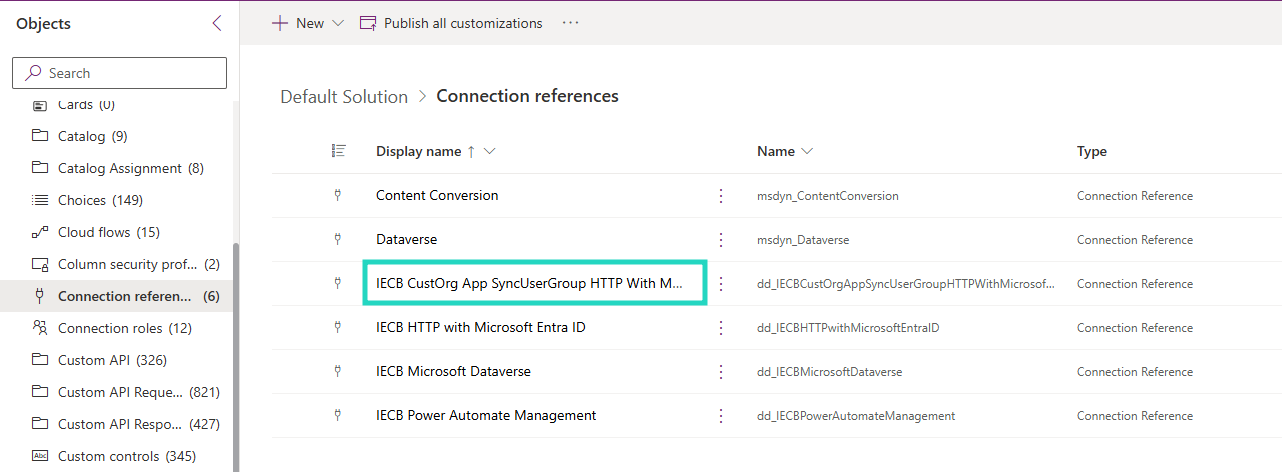
- Select the
IECB CustOrg App SyncUserGroup HTTP With Microsoft Entra IDConnection Reference, select the Connection drop-down, select the relevant Connection created during the PowerPlay Post-Deployment Steps, select Save and Save Changes
Flow Enablement
- Log in to Power Apps as your Onboarding Administrator
- From the top right corner, select your
CustOrgenvironment - Navigate to your ServOrgs Managed Solutions and open the IECB-CustOrg-App-Sync User Group
- Select Cloud flows in the Objects panel
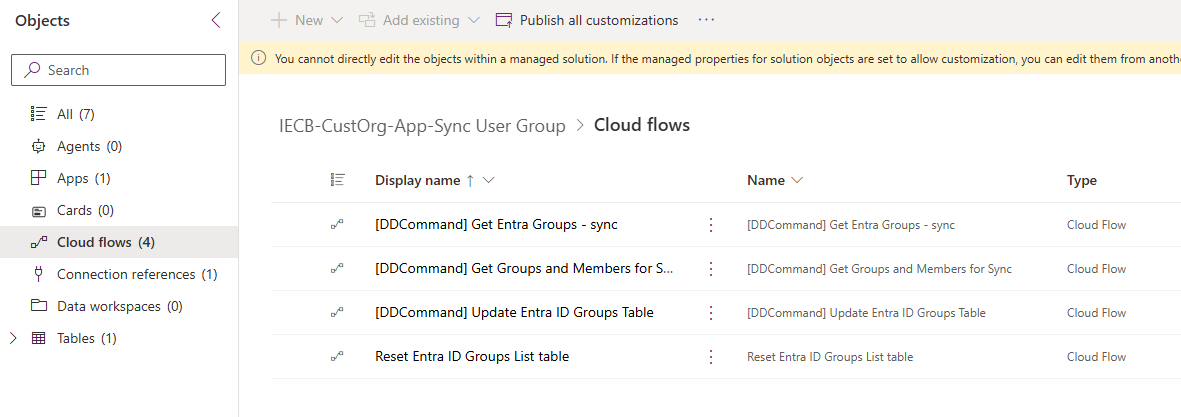
- Enable the following flows in order:
- [DDCommand] Get Entra Groups - sync
- [DDCommand] Get Groups and Members for Sync
- [DDCommand] Update Entra ID Groups Table
- Reset Entra ID Groups List table
CustOrg Library: Enumerate Command Offers
- Log in to Power Apps as your Onboarding Administrator
- From the top right corner, select your
CustOrgenvironment - Navigate to your CustOrgs Managed Solutions and open the IECB Custorg Library
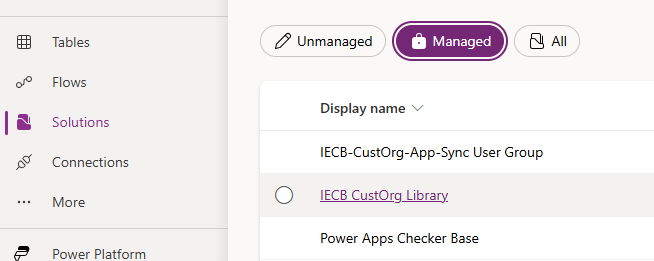
- Select Cloud flows in the Objects panel
- Load into
[Scheduled] Enumerate Command Offersand Run the flow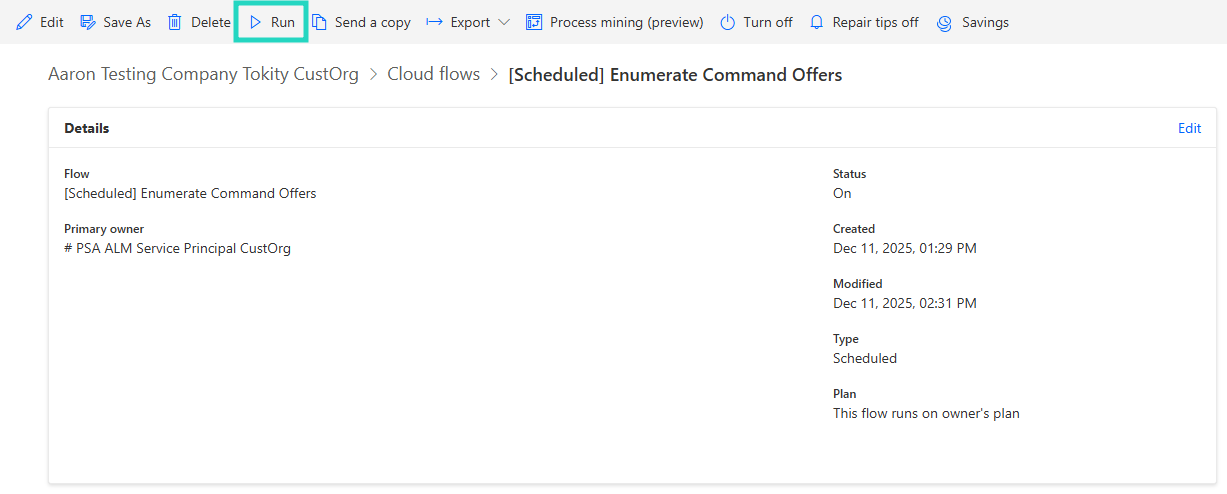
- As an output of the flow, you can expect the
IECBCommandOffertable to populate with supporting commands for the Sync Entra Groups solution: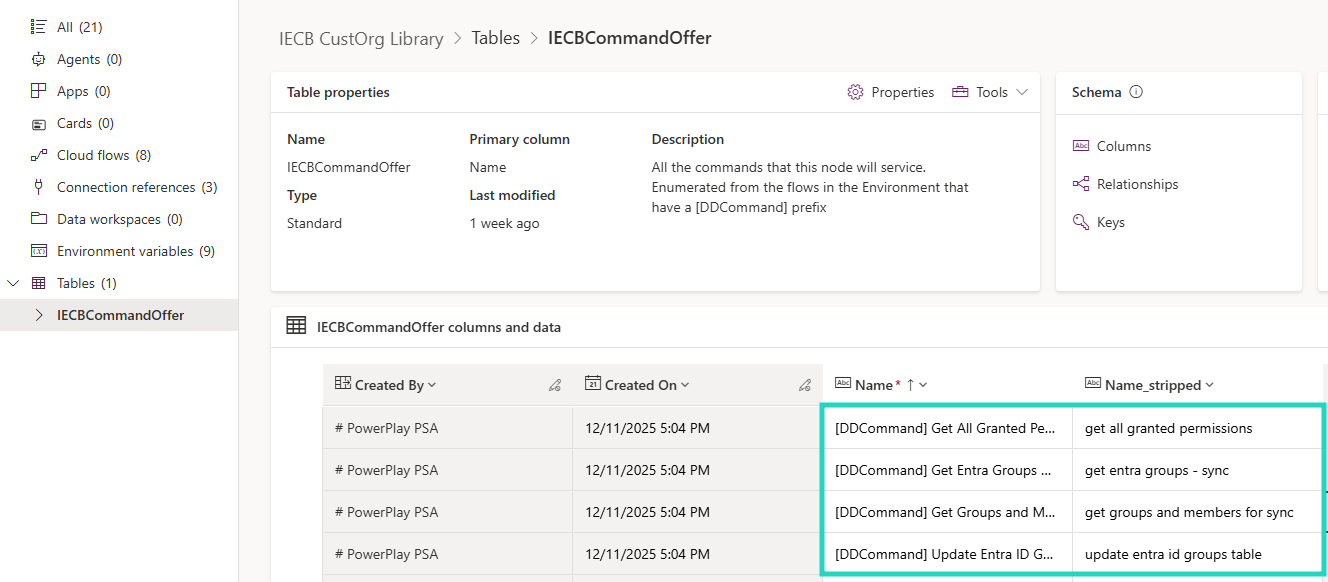
ServOrg: Manual Flow Runs
- Log in to Power Apps as your Onboarding Administrator
- From the top right corner, select your
ServOrgenvironment - Navigate to your ServOrgs Managed Solutions and open the IECB-ServOrg-App-Sync User Group
- Select Cloud flows in the Objects panel
- Load into each of the following and Run the flow
- Run
[Manual] Update Sync Mode Dynamic List - Run
[Schedulde] Update IECB CustOrgs Dynamic List
- Run
Sync Configuration Form Access and Submission
As part of our Solution Library Deployment step a Sync User Group form was deployed to our DeskDirector instance
- Log into your DeskDirector instance as a Master Admin
- Browse to Portal > Service Catalogue > Service Type Configuration
- Search and select the
Sync User Groupservice catalogue item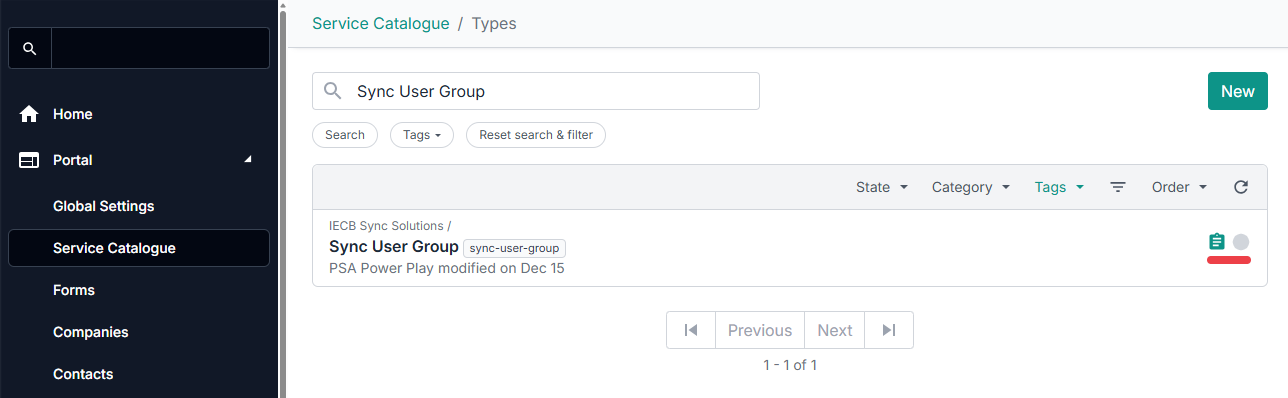
- Grant your Onboarding Administrator contact access to the service catalogue item using:
- The Access tab on the service catalogue item
- Include the service catalogue item in a Service Group the contact can access
- Browse to
Client Portal>Contacts, and then search and select the Onboarding Administrator contact - From the
Profilemenu, Impersonate the contact usingDiagnose Client portal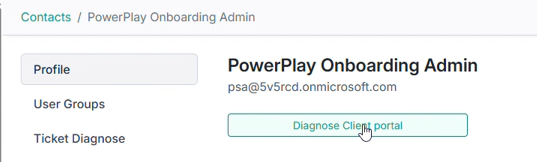
- Contact Support > New Ticket > IECB Sync Solutions > Sync User Group
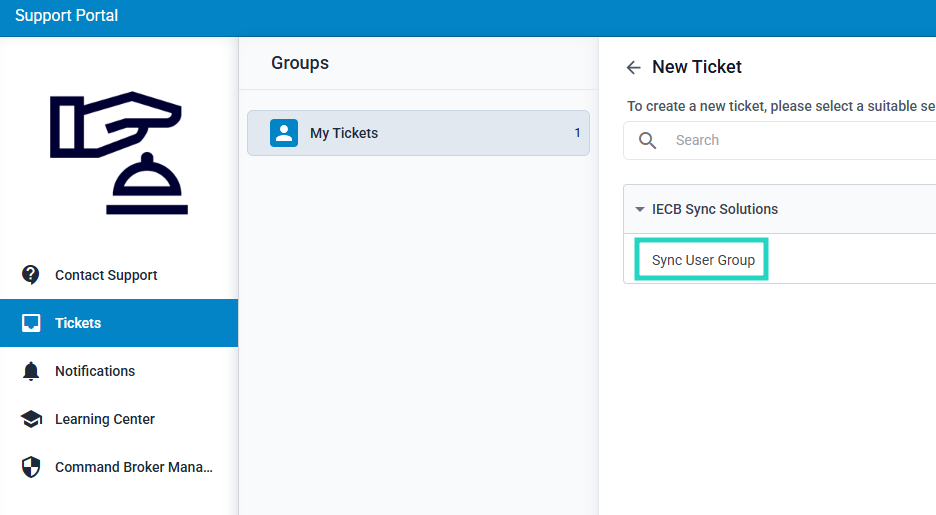
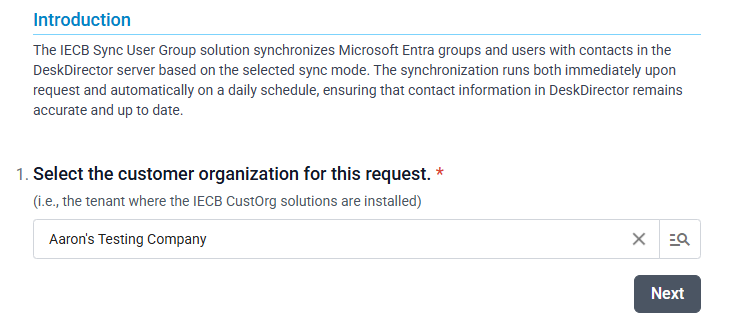
- Search and select your CustOrg Account/Company from the dynamic list, followed by Next
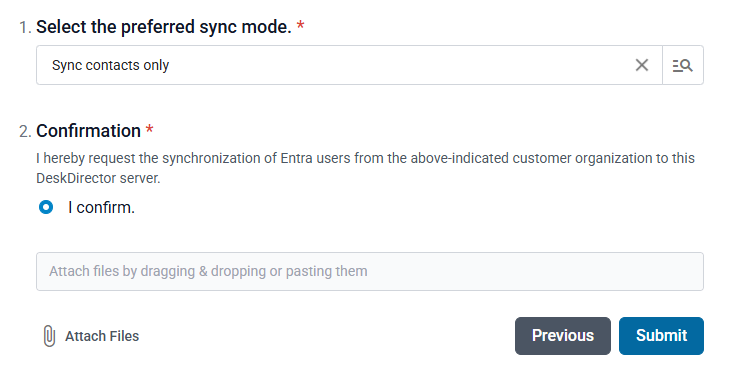
- Select your preferred sync mode:
- Sync contacts only: Synchronizes Entra group users as contacts under the selected account, without assigning them to any Contact Groups or Service Groups
- For your initial sync, it is recommended to use the Sync contacts only configuration
- Add contacts to Contact Group: Adds the synchronized contacts to the appropriate Contact Group
- Note: Contact Groups are automatically created based on Entra group names
- Link contacts to Service Group: Links the synchronized contacts to a Service Group.
- Important: Ensure that the Service Groups with the same name as the Entra groups already exist before running the sync
- Sync Entra groups as Accounts: Synchronizes Entra groups as DeskDirector accounts.
- Important: Ensure that Accounts are properly tagged to match their corresponding Entra groups before running the sync (e.g. the account for 'IT Support Team' should be tagged as 'it-support-team'). You may choose any name for the account.
- Add Entra group owners and members to Contact Group: Adds both owners and members of an Entra group to the appropriate Contact Group, assigning different roles to each
- Note: Contact Groups are automatically created based on the Entra group names
- Sync contacts only: Synchronizes Entra group users as contacts under the selected account, without assigning them to any Contact Groups or Service Groups
- Submit your details to complete the configuration form:
Entra Groups Sync Manager
- Log in to Power Apps as your Onboarding Administrator
- From the top right corner, select your
CustOrgenvironment - Navigate to your CustOrgs Managed Solutions and open the IECB-CustOrg-App-Sync User Group
- Select Cloud flows in the Objects panel
- Load into
[Scheduled] Update CustOrg's Entra Groups Tablefollowing and Run the flow - As an output of the flow, you can expect the
Entra ID Groups Listtable to populate with Group information from your CustOrg tenant's Microsoft Entra: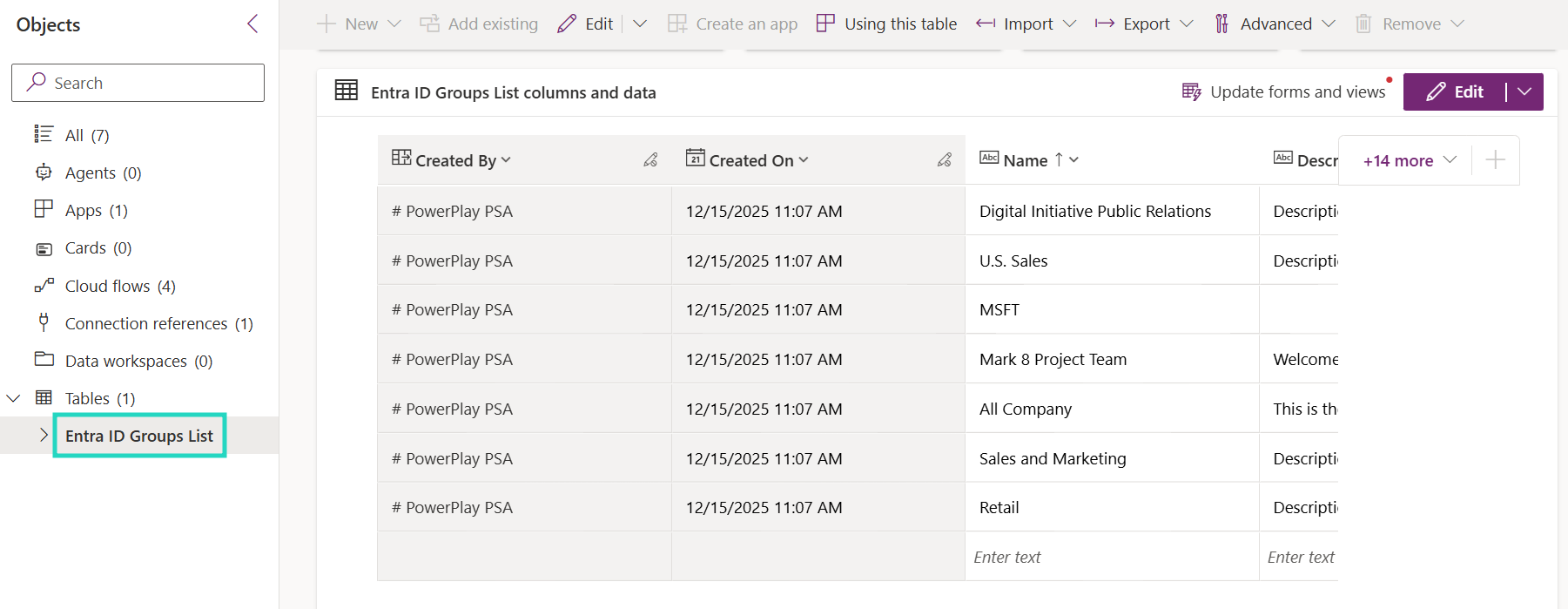
- Still within our IECB-CustOrg-App-Sync User Group solution, select Apps from the Objects panel
- For the
Entra Groups Sync Manager, select More Options and Share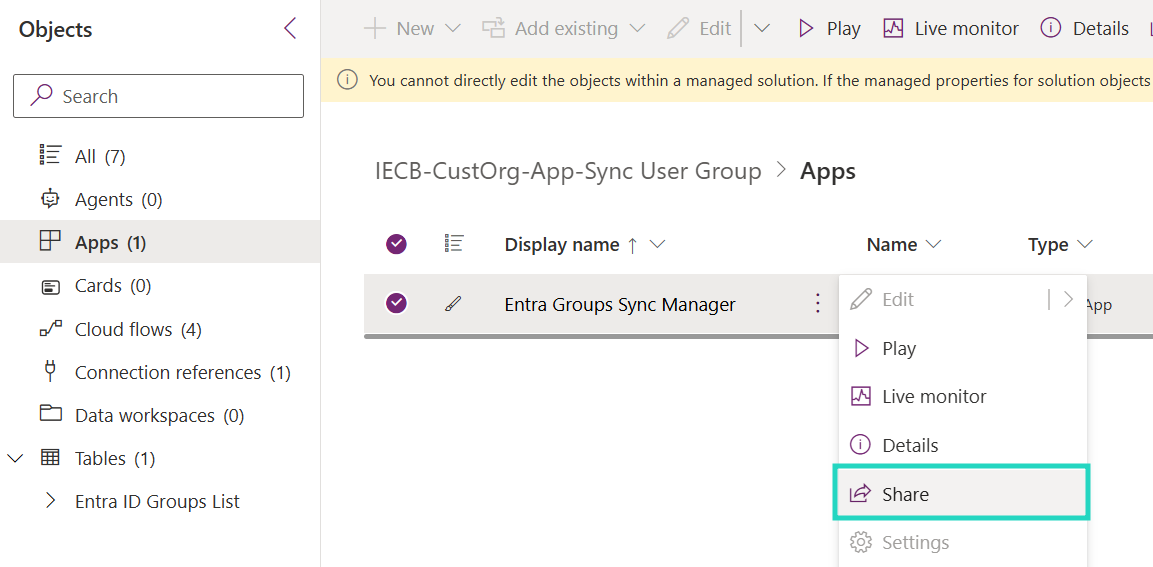
- Search and select your Onboarding Adminstrator user, followed by Share
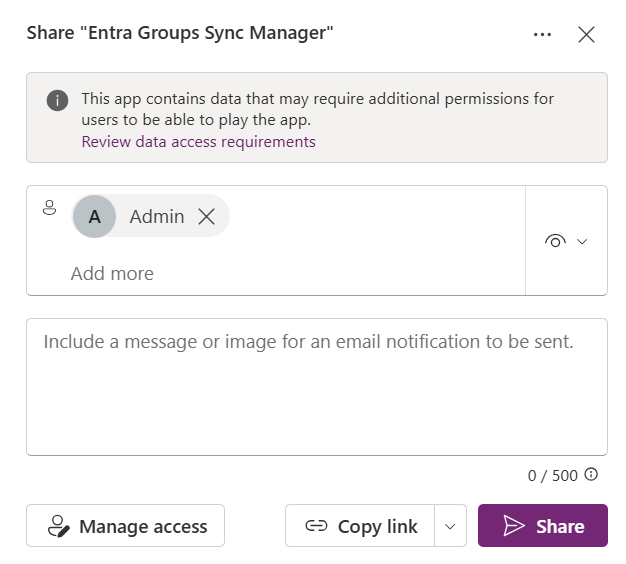
- A PowerApps Premium license will be required to access PowerApps
- Additional access can be granted to other users within your organisation
- Once shared, Play the PowerApp:
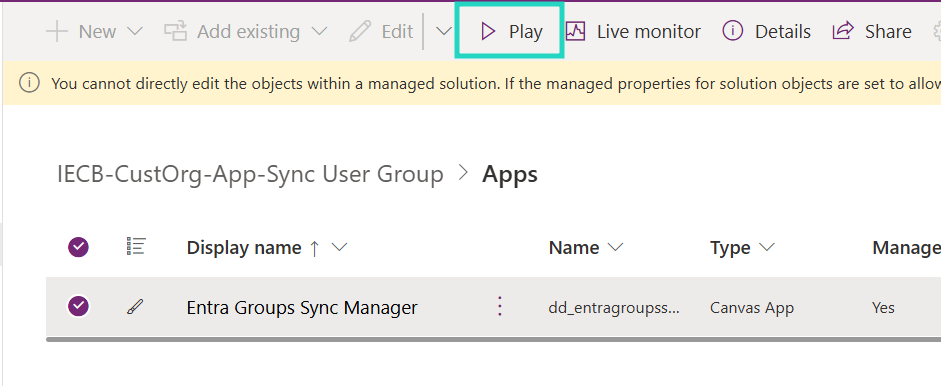
- Within the Entra Groups Sync Manager PowerApp, enable any relevant groups using the Sync to Desk Director column
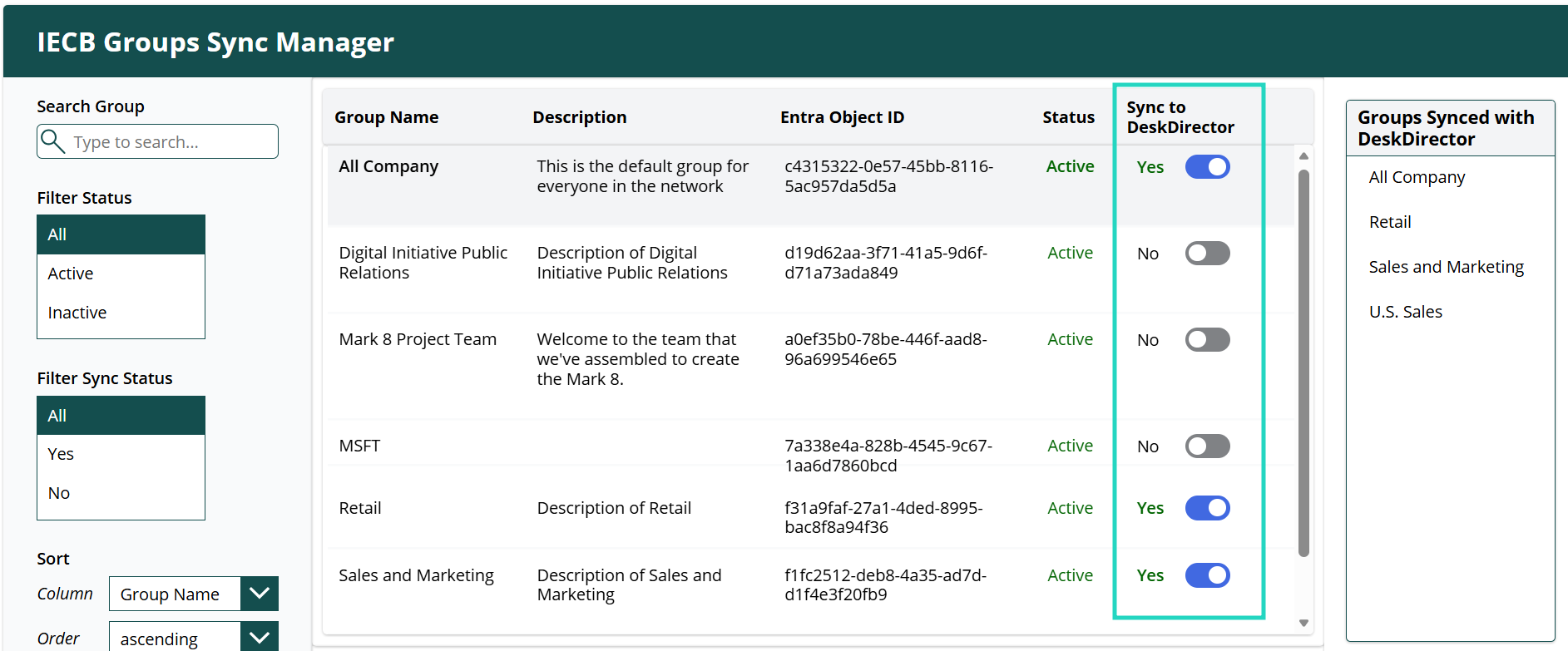
- Once enabled:
- To expedite a sync and confirm the solution is working as expected, complete the
Sync User Groupform submission again outlined in the Sync Configuration Form Access and Submission section - Alternatively, these groups will be included as part a daily scheduled sync task
- To expedite a sync and confirm the solution is working as expected, complete the
